Bring your clients, services and upcoming bookings across
Preen imports CSV files, on the web, under Settings. Import them in the order the screen numbers them: clients, services, team, then your upcoming bookings. Nothing is saved until you have checked what Preen found.
What's included
- Changing to Free never blocks redeeming or refunding a voucher already sold, completing or refunding payments already started, checking out a booking with money attached, or reading and exporting existing receipts and completed client records.
- Bookable staff: Free 1, Solo 1, Studio 5, Growth 15, Scale 16+. If a change leaves you above the limit, the owner chooses who clients can book in Settings, Team. Until then, online booking offers the allowed number, owner first then earliest added. Staff and existing appointments stay in the diary.
Before you start
- Only an owner or a manager can import, and only on the web. The Preen app does not import.
- Export a CSV file from your old system. If it gives you an Excel file, open it and save it as CSV first.
- Export steps for your old system: Fresha, Timely, Square Appointments, Phorest, Wix Bookings, Kitomba, Shortcuts, Acuity Scheduling, Setmore and Phone contacts or a paper book.
Preen is not affiliated with Fresha, Timely, Square Appointments, Phorest, Wix Bookings, Kitomba, Shortcuts, Acuity Scheduling or Setmore.
Open the import screen
- On the web, open Settings. Under Import from your old system, choose Import clients, services, team and bookings. You can also choose Import clients on your Clients page.
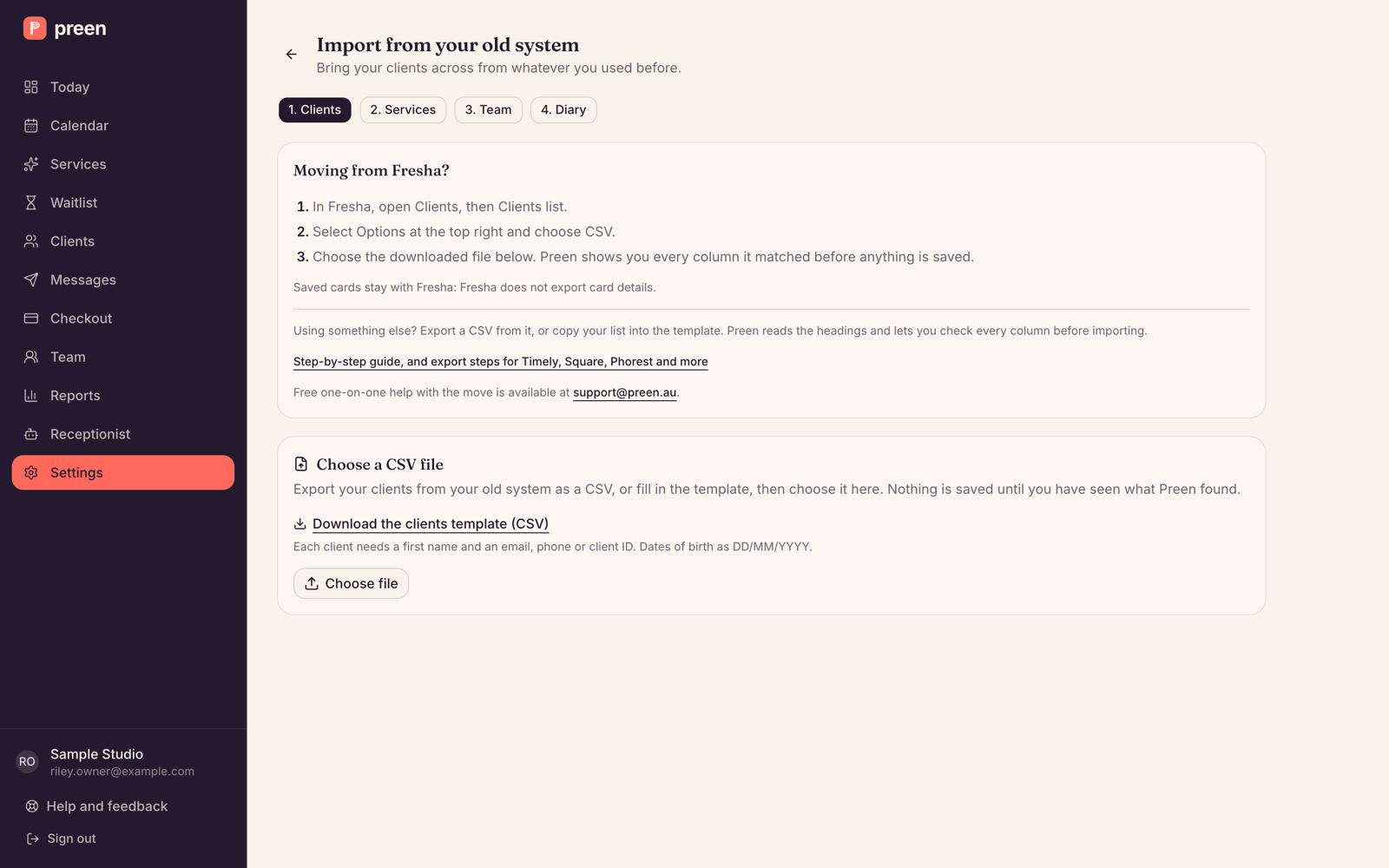
- Work through the tabs in order: 1. Clients, 2. Services, 3. Team, 4. Diary. A booking can only match a client, service and team member who is already in Preen.
Import each file
- Use Choose file to pick your CSV. Or download the template on that tab, such as Download the clients template (CSV), fill it in and choose that file.
- Under Check the columns, check what Preen matched from your headings and fix anything wrong. A wrong match goes into every record.
- Read What Preen will do. It shows how many rows Preen can use and how many it cannot, with the reasons. Download these rows to fix gives you the rows it cannot use.
- On the 4. Diary tab, pick the Location first: every time in your file is read as the time there. Then choose Check against your business.
- Choose the import button. It says how many it will bring in, such as Import 120 clients. When it is done you will see Import finished.
What each file needs: Each client needs a first name and an email, phone or client ID. Dates of birth as DD/MM/YYYY. Service name, length in minutes and price are required. Prices in dollars, like 85 or 85.00. Dates as DD/MM/YYYY, times like 9:30 am or 14:30. Each booking needs a service, a team member, and the client's email, phone or client ID.
What arrives switched off
- Imported services arrive switched off and set to No deposit. Check their prices, then switch them on in Services, and set a deposit if you want one.
- Imported team members arrive switched off. Before you import bookings, switch each one on as Active and Bookable in Team.
- Imported bookings send no booking confirmation, and no reminders until you choose Turn on reminders for these bookings on the Diary tab. You cannot turn them back off from the import screen. Imported bookings carry no cancellation or no-show charge.
If clients prepaid in Fresha
- In a Fresha appointments file, Preen reads the Prepayments column. When a new booking was prepaid in Fresha, Preen records the prepayment and the booking shows Paid outside Preen and the amount. Some older versions of the Preen phone app show this as Paid in Fresha. Preen records the same amount only once per client per day: if it was already recorded for that client that day, on a booking that is not cancelled or a no-show, the import tells you and does not add it again. If Preen cannot read a prepayment, that booking is refused so you can correct it.
- At checkout, Preen takes the prepayment off the total, so you only collect the rest. See Check out a client. Some versions of the Preen phone app cannot check these bookings out yet. If the app will not, check out on the web.
- Owners and managers can change the amount on the web. Open the booking in Calendar, choose Change outside payment, enter the correct amount in Amount paid outside Preen (AUD)and a reason, then choose Save outside payment. Enter $0.00 to remove it. You cannot change it on a cancelled or no-show booking, while a checkout is open on the phone, while a card payment is still going through, or while a sale uses it. Once a sale has used it, you can change it only after that sale is voided, and the amount left is then only what that sale used.
- Preen does not refund this outside payment. If you need to refund it, do that where the client paid. If the prepayment is more than the bill, checkout tells you how much is not used.
- A booking that was already in Preen is skipped by the import. The import does not add an outside payment to it. If a client prepaid in Fresha for one of those, check Fresha before you take payment.
What Preen skips or refuses
- Bookings in the past are skipped. Preen imports what is still to come.
- If your file has a status column, bookings marked cancelled, no-show, deleted or declined are skipped. Without one, delete cancelled bookings from the file first.
- A booking is refused if Preen cannot find exactly one matching client, one service, and one active, bookable team member.
- In a Fresha appointments file with no client email, phone or client ID, the client’s full name must match exactly one of your clients. Preen will not create a client from a name alone.
- A booking that would double book someone is still imported, and listed for you to check.
Importing the same file again
- Clients are matched on their email, or their phone when nobody has a better match. Only blank details are filled in. Details you have corrected are never overwritten.
- Services are matched on their name. An import never changes your prices or lengths.
- Team members you already have are matched on their name and left as they are.
- Bookings are matched on a booking reference, or otherwise on the client and the exact time. A booking already imported is listed as Already in your diary, not added twice.
- With a booking reference, a booking your old system moved is moved in Preen too, unless you also moved it in Preen: then that row is refused so you can choose. In a Fresha file, a changed time is not moved: it is listed for you to check by hand.
- Without a booking reference, a booking whose time changed in your old system can come in as a second copy. Check both and cancel the one you do not need.
- Importing again does not cancel a booking you cancelled in your old system, or take off a service you removed there. Change those in Preen yourself.
Want a hand?
Free one-on-one help with the move is available at support@preen.au. For every detail of each tab, see the step-by-step guide to moving to Preen.
Still stuck? Email support@preen.au, or see every guide.
Checked against Preen on .