See your takings and export your sales
Reports shows what your business took and how it is going, for the dates you choose. Owners and managers can see it on the web. The Preen app shows today's and this week's takings.
What's included
- Solo and above include card payments, checkout and receipts, marketplace listing, waitlist, reports and new consultation forms. Free includes the calendar, unlimited bookings, clients, services, your own booking link and client emails.
- Changing to Free never blocks redeeming or refunding a voucher already sold, completing or refunding payments already started, checking out a booking with money attached, or reading and exporting existing receipts and completed client records.
Read your reports
- On the web, open Reports.
- Choose This week, This month or Last 30 days. For other dates, choose Custom, set From and To, and choose Apply.
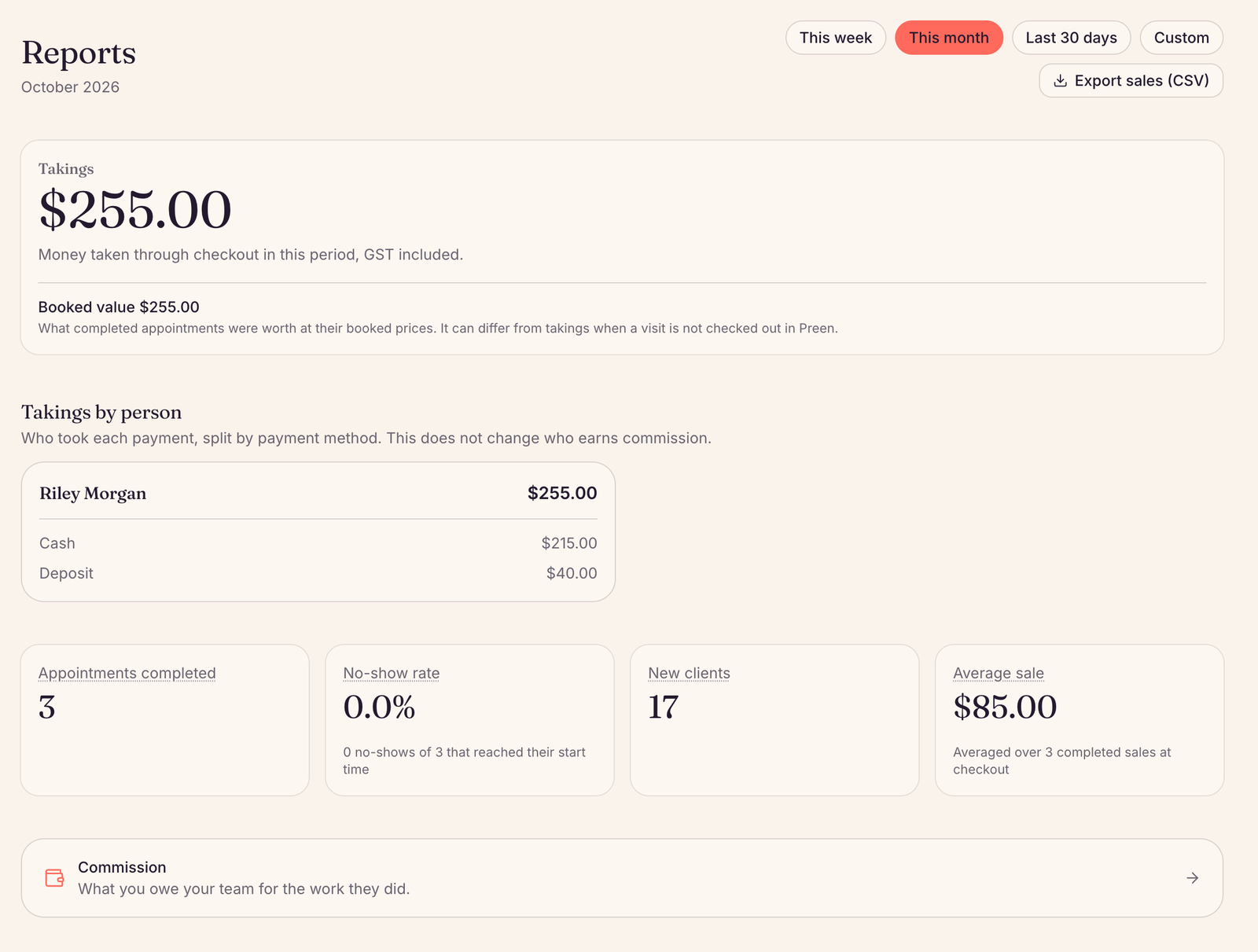
- Takings at the top is the money taken through checkout in that period, GST included. Below it are Takings by person, Appointments completed, the No-show rate, New clients, the Average sale, your top services and the GST summary.
- Takings by person shows each payment method on its own line. A sale paid partly by Cash and partly by Tap to Pay contributes each amount to its own method. It is still one sale.
Commission shows what you owe your team for the work they did, and Tax set-aside shows how much of the week’s takings to put aside for tax.
Download a CSV file
- Export sales (CSV), at the top of Reports, downloads the sales for the dates on screen.
- A split payment uses one row for the sale. The Payments cell lists each method and amount, such as Cash 30.00; Tap to Pay 70.00. It does not make a separate sale row for each payment.
- The GST summary has its own Export CSV.
- In Commission, Export CSV downloads the pay run on screen.
- To download your client list, open Clients and choose Export clients.
In the Preen app
Owners and managers see takings at the top of the Sales tab. Choose Today or This week. Open the sale to see Paid, with each payment method on its own line and its amount. A split sale shows Cash and the Tap to Pay amount separately. The card line may be labelled Card (terminal).
Still stuck? Email support@preen.au, or see every guide.
Checked against Preen on .