Sell and redeem gift vouchers
A gift voucher is money a client has already paid for work you have not done yet. Preen keeps each voucher's balance, so it stays right when someone spends part of it. Owners and managers issue vouchers on the web.
What's included
- Studio and above include selling and issuing new gift vouchers and creating new client safety records.
- Changing to Free never blocks redeeming or refunding a voucher already sold, completing or refunding payments already started, checking out a booking with money attached, or reading and exporting existing receipts and completed client records.
- Free includes client emails. Monthly client texts: Solo 100, Studio 300, Growth 750, Scale 1000. Long texts count as more than one text. Confirmations default to email and reminders to text for new businesses. Your saved choices stay as they are. The allowance follows your business timezone. At the limit, the same notice uses email when available. Without an email, Messages shows not sent: plan text limit. Settings shows the texts used and left this month, with notices at 75%, 90% and when they run out. If your business pays Preen by card, extra texts can keep going past the monthly number at 10c each including GST, up to a monthly limit you set in Settings ($20 unless you change it), added to your next invoice. Past the limit, or with extra texts off, the email rule above applies.
Sell a voucher at the counter
- Take the payment the way you usually do. Issuing a voucher in Preen records it as paid for, but does not take the money.
- In Settings, choose Payments & money, then choose Manage vouchers under Gift vouchers.
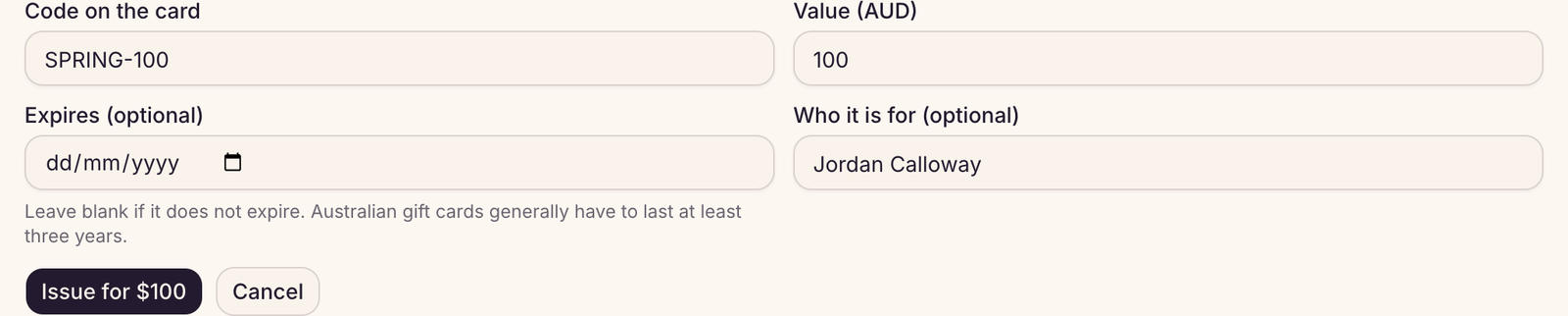
- Choose Issue voucher. Enter the Code on the card and the Value (AUD), and if you like, Expires (optional) and Who it is for (optional).
- Choose the Issue for button, which shows the amount.
Leave the expiry blank if the voucher does not expire. Australian gift cards generally have to last at least three years. The list shows each voucher’s code, what is left on it, and the total still outstanding. Cancel stops a voucher being used, and keeps its history.
Sell vouchers online
- On the same page, tick Sell gift vouchers online. Your voucher page goes live straight away.
- Your booking page then shows Buy a gift voucher. Clients choose an amount, enter their details and the recipient’s, and pay by card.
- Preen emails the voucher, with its code, to the recipient, and a receipt to the person who bought it. It appears in your list like one you issued.
Online vouchers are paid by card, so you need card payments connected. See Connect card payments with Stripe.
Take a voucher as payment
- At checkout on the web, choose Gift voucher as the payment.
- Type the code from the voucher and choose Find. Preen shows what is left on it, and will not take more than that.
- Choose Add payment. If the voucher does not cover the bill, add another payment for the rest.
Taking a gift voucher is offered in the Preen app’s till for every business. Tap to Pay on iPhone is selected first when this iPhone can take it. Choose Cash, Card paid on another terminal, Bank transfer or Other, and Gift voucher then shows above Tender. A gift voucher cannot be combined with Tap to Pay on the phone, even in the latest app. If it is still missing, update the app. The tender you just chose takes whatever the voucher does not cover. Tap Record sale. To split that rest, tap + Split across another tender. Or use Gift voucher at checkout on the web and choose Add payment for the rest. See Check out a client.
Still stuck? Email support@preen.au, or see every guide.
Checked against Preen on .