Ask clients to fill in a consultation form
A consultation form is a set of questions a client answers before their appointment, such as an intake, a patch test or a health check. Attach it to a service, and clients who book that service can answer it from the link in their booking confirmation (when that message is on) or their reminders, up until the appointment starts. Owners and managers build forms on the web.
What's included
- Solo and above include card payments, checkout and receipts, marketplace listing, waitlist, reports and new consultation forms. Free includes the calendar, unlimited bookings, clients, services, your own booking link and client emails.
- Changing to Free never blocks redeeming or refunding a voucher already sold, completing or refunding payments already started, checking out a booking with money attached, or reading and exporting existing receipts and completed client records.
- Free includes client emails. Monthly client texts: Solo 100, Studio 300, Growth 750, Scale 1000. Long texts count as more than one text. Confirmations default to email and reminders to text for new businesses. Your saved choices stay as they are. The allowance follows your business timezone. At the limit, the same notice uses email when available. Without an email, Messages shows not sent: plan text limit. Settings shows the texts used and left this month, with notices at 75%, 90% and when they run out. If your business pays Preen by card, extra texts can keep going past the monthly number at 10c each including GST, up to a monthly limit you set in Settings ($20 unless you change it), added to your next invoice. Past the limit, or with extra texts off, the email rule above applies.
Build a form
- In Settings, choose Clients & messages, then choose Manage forms under Consultation forms.
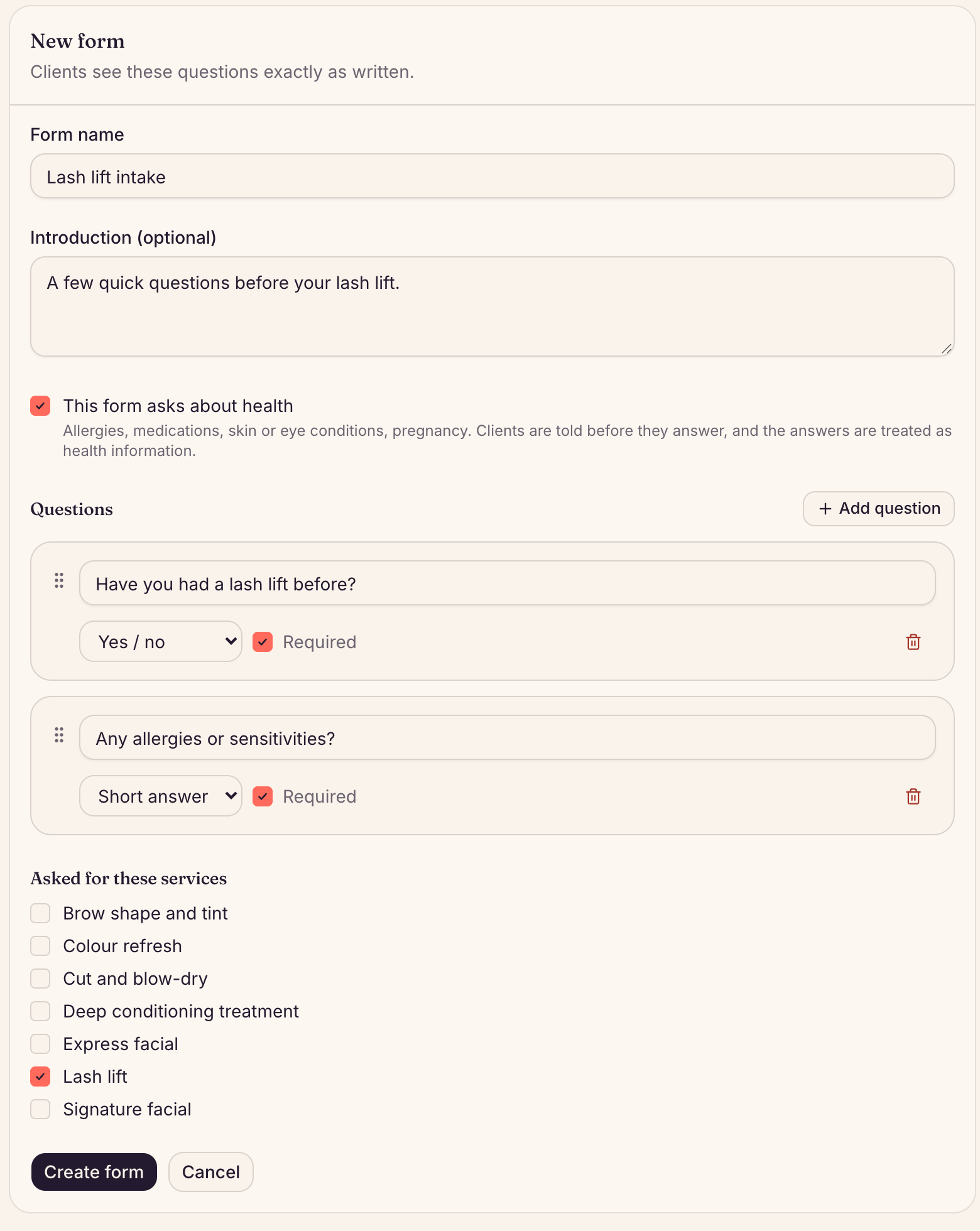
- Choose New form. Give it a Form name, and an Introduction (optional) if you like.
- If it asks about allergies, medications, skin or eye conditions, or pregnancy, tick This form asks about health. Clients are told before they answer.
- Choose Add question for each question. Type the question, choose the kind of answer (Short answer, Long answer, Yes / no, Choose one, Choose any, Date or Signature) and tick Required if they must answer. For a choice, type the Options, one per line.
- To split a long form into steps, choose Add section. Type a title in Section 1 title (for example Our policies), and add a short note under it if you like. Then add the questions that belong in that section. The questions under a section heading, up to the next one, are shown together. Every section needs a title. Use the up and down arrows to move a section or a question.
- Under Ask clients to fill this in, choose Every booking or Only once. Every booking is the default.
- Under Asked for these services, tick the services that need it.
- Choose Create form.
A form that is not attached to any service is never shown to anyone, and the list says so under the form.
Choose how often clients are asked
- Every booking asks the client each time they book a service that has the form. This is how every form works until you change it.
- Only once treats the form as filled in when the client has already answered it on any earlier booking. They are not asked again. On preen.au, the booking shows Form on file with the date they filled it in. Their answers stay under Forms on the client.
- If a client books services with different forms, they are still asked for each form they have not filled in. A form they have already filled in is not asked for again, whichever service they book. If two client records are merged, answers on either one count.
- If a form has a required tick to agree, an earlier ticked answer counts as agreed. If you change the questions, clients who already filled this in won’t be asked again. Switch to Every booking if you need fresh answers.
- A client who has an Only once form on file can still choose Update my answers on their booking page, for example if an allergy has changed. That adds a new answer and leaves the earlier one as it was.
How clients fill in a form with sections
- A form with more than one section is filled in one section at a time. The client sees the section’s title, a line such as Section 1 of 3, and only that section’s questions.
- They choose Next to go on and Back to return. Next checks that section’s answers first, so a missing required answer stops them there. Later sections do not hold them up. On the last section, the button is Send to the business.
- Questions placed above the first section heading are their own first step. It says Section 1 of 3, or however many steps the form has, with no section title. A form with no sections is one page, as before.
Copy a form
- In Consultation forms, choose Copy on the form you want to start from.
- Preen makes a new form called Copy of and the original name, with the same introduction, health setting, sections and questions. If that name is taken, it adds (2), then (3), and so on.
- The copy opens ready to edit. It is not attached to any service, so no one is asked it until you tick services under Asked for these services and choose Save form.
Only owners and managers see Copy, and only while your plan includes new consultation forms.
Change or turn off a form
- Choose Edit, make your changes and choose Save form. Answers already given keep the questions they were answered against.
- Turn off stops clients being asked. Turn on starts it again.
Read the answers
- On the web, open the client in Clients. Their answers are under Forms, newest first.
- Once the client has filled it in for that booking, the booking shows Form on file with the form’s name, on the web and in the app. The app shows it only for answers given for that booking. An Only once form that was filled in on an earlier booking shows as on file on the web only.
- In the Preen app, open the client from the Clients tab. Their answers are under Forms.
Still stuck? Email support@preen.au, or see every guide.
Checked against Preen on .