Add a team member and give them a login
Adding someone to your team as bookable lets clients book them and gives them a column in your calendar. Giving them a login lets them sign in to Preen for your business, on the web and in the app. You can do one without the other. Owners and managers can do both.
What's included
- Changing to Free never blocks redeeming or refunding a voucher already sold, completing or refunding payments already started, checking out a booking with money attached, or reading and exporting existing receipts and completed client records.
- Bookable staff: Free 1, Solo 1, Studio 5, Growth 15, Scale 16+. If a change leaves you above the limit, the owner chooses who clients can book in Settings, Team. Until then, online booking offers the allowed number, owner first then earliest added. Staff and existing appointments stay in the diary.
Add a team member on the web
- Open Team and choose Add staff.
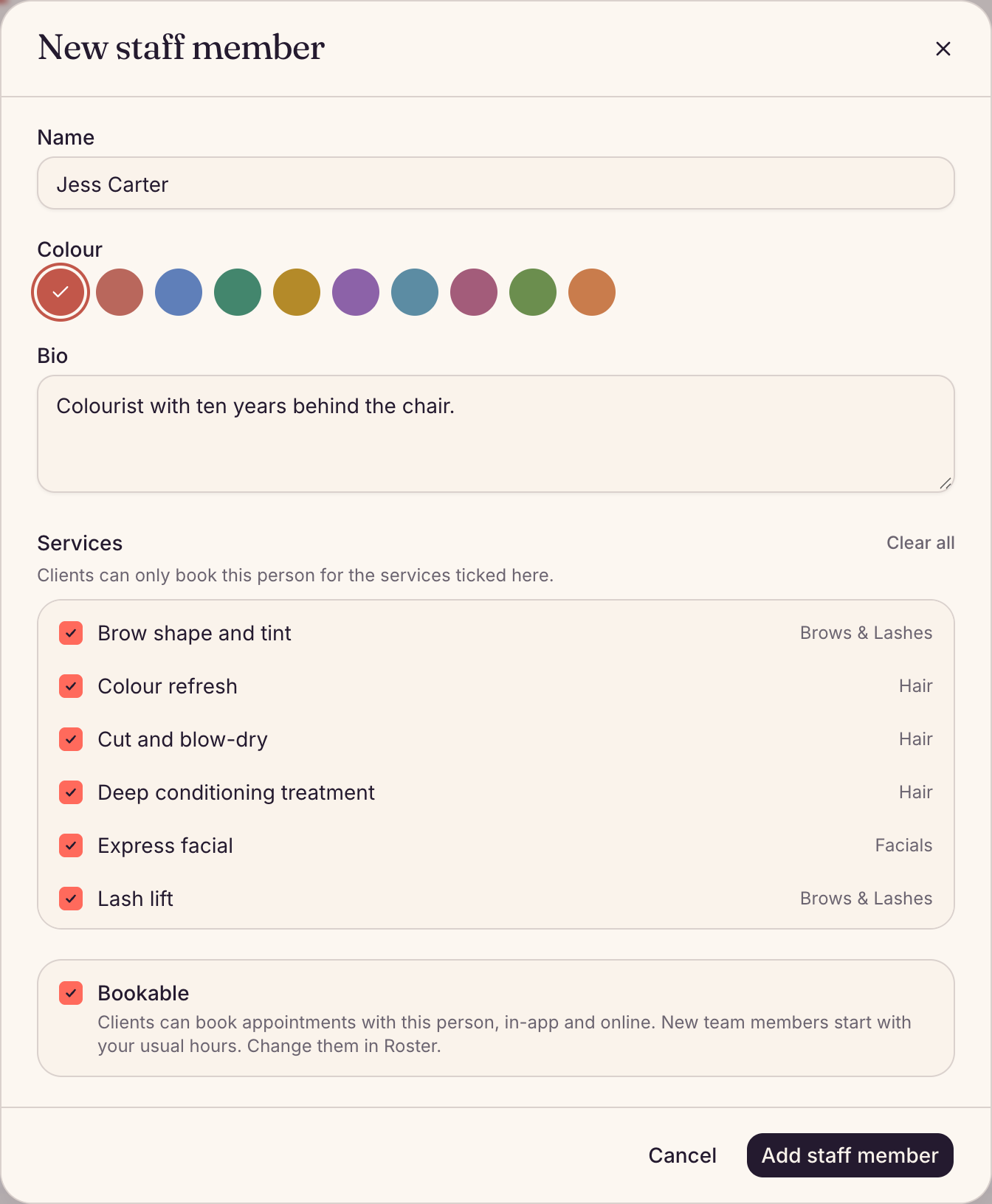
- Enter their Name, pick a Colour for the calendar, and add a Bio if you like.
- Under Services, tick the services they do. Clients can only book them for the services ticked.
- Leave Bookable ticked so clients can book them, then choose Add staff member.
They start with the same hours as the first person on your team who has hours, or Tuesday to Saturday, 9:00 to 17:00. Change them with Edit roster: see Set your opening hours and team hours.
Bookable team members and your plan
Each plan includes a number of bookable team members. Logins do not count, only bookable team members do. If adding someone would go past your plan, Preen says so before you save. When your plan has no bookable places left, they are saved as not bookable.
Add a team member in the Preen app
- Open More, then Team, and tap + Add team member.
- Enter their name, pick a colour, tick the Services they do and leave Takes bookings on.
- Tap Add team member, then Back to team.
Give them a login
- On the web, open Team and go to Logins. In the app, open More, Team, then Logins.
- Enter their Email and choose a Role: Manager, Staff or Receptionist. Preen shows what each role can do. A manager can invite staff and receptionists, but not another manager.
- Under Their staff record, choose their name if they are on your team. For someone who is not, such as a bookkeeper, leave it on None (desk or admin only), or None in the app.
- Choose Send invite. They get an email with a link that works once and expires in 7 days.
When they open the link, they create a login with the invited email and a password, or sign in if they already have one, and join your business. A new login is asked to confirm its email first. Invites not yet used are listed under Open invites, with Resend and Cancel.
Roles and limits
- Owner: everything, including billing, payments and the team. Manager: runs the business day to day: settings, services, the team and the roster. Staff: works the diary, clients and checkout. Receptionist: runs the front desk: diary, clients and checkout. Staff and receptionists cannot change settings or the team.
- For a staff or receptionist login you can tick Sees only their own appointments (it needs a staff record) or Hide client phone and email. An owner can also set these for a manager.
- Only an owner can change someone’s role or remove them from the business.
Still stuck? Email support@preen.au, or see every guide.
Checked against Preen on .