Set your opening hours and team hours
Preen has no separate opening hours setting. Your business is open when someone on your team is rostered on, and clients can only book online when the person they choose is working. Set each person's weekly hours, and their regular days off, in their roster. When someone works an extra day or different hours just once, change that one day. Owners and managers can change rosters.
What's included
- Changing to Free never blocks redeeming or refunding a voucher already sold, completing or refunding payments already started, checking out a booking with money attached, or reading and exporting existing receipts and completed client records.
- Bookable staff: Free 1, Solo 1, Studio 5, Growth 15, Scale 16+. If a change leaves you above the limit, the owner chooses who clients can book in Settings, Team. Until then, online booking offers the allowed number, owner first then earliest added. Staff and existing appointments stay in the diary.
On the web
- Open Team. Each person’s card shows their hours under Roster.
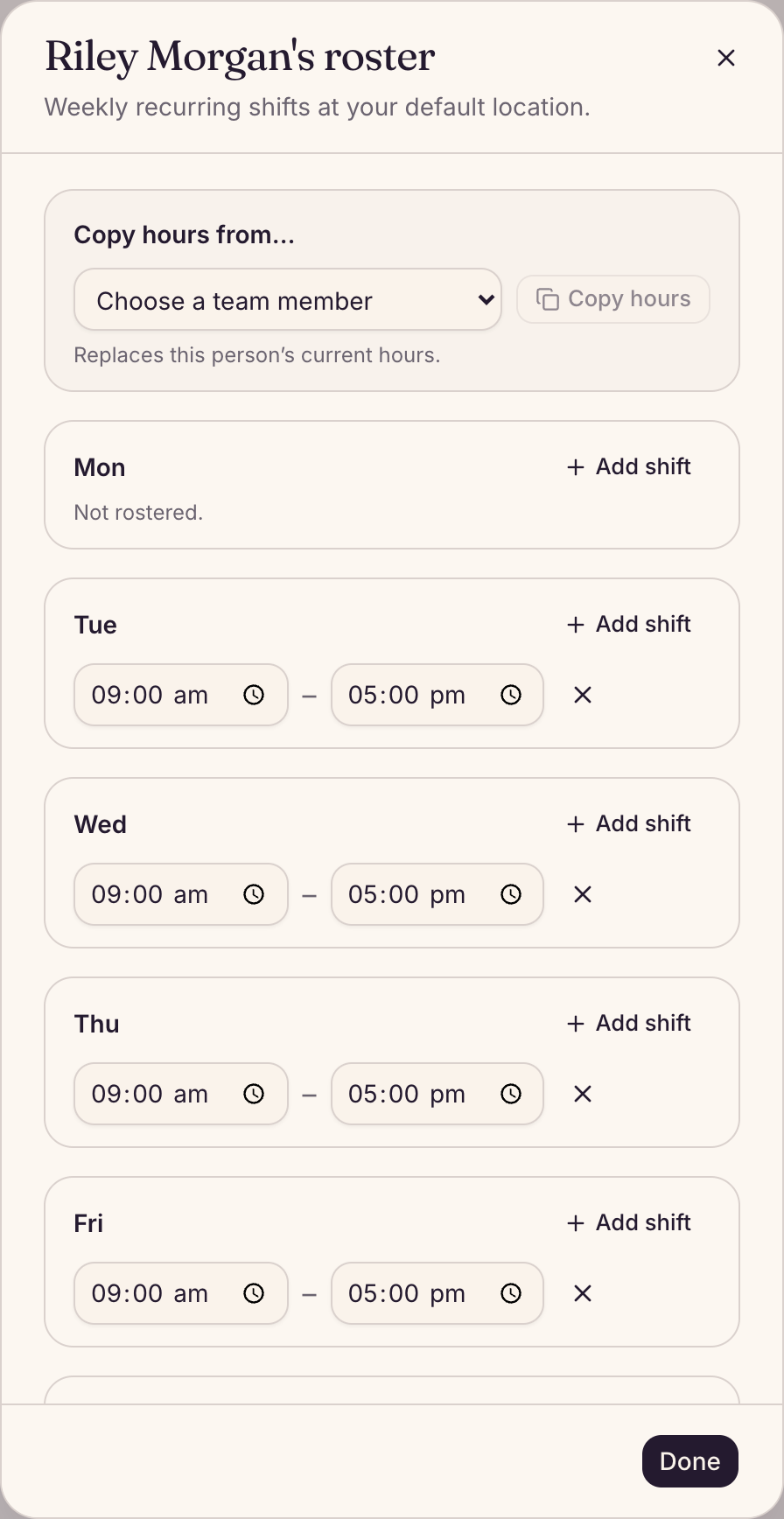
- Choose Edit roster on their card.
- For each day they work, choose Add shift, then change the start and end times. A day with no shift shows Not rostered: that is their regular day off.
- To take a shift away, choose the cross next to it (Remove shift). For a split shift, choose Add shift again on the same day.
- Choose Done.
Changes save as you make them. To give someone the same hours as a colleague, choose the colleague under Copy hours from… and choose Copy hours. This replaces their current hours.
Change hours for one day
- Open Team and choose Edit roster on their card, then Change hours for one day. Or, in the calendar, choose the clock at the top of their column on that day.
- Choose the date. Preen shows their usual hours for that day.
- Set their start and finish times. For a split day, choose Add hours.
- Choose Save. If they already have bookings that day outside the new hours, Preen lists them and asks you to choose Save anyway. Nothing is moved or cancelled.
Their weekly roster stays the same. Clients can book the new hours online, and the web calendar shows Changed hours on that day. To go back, open the day again and choose Use usual hours. You change hours for one day on the web. The Preen app’s calendar shows the changed hours on that day too, but you change them on the web.
In the Preen app
- Open More, then Team, and tap the person.
- Tap Roster (working hours).
- Tap + Shift on a day to add hours, tap a time to change it, or tap the cross to remove a shift. A day with no shift shows Not working.
- Tap Save hours. In the app, nothing is saved until you do.
More, then Opening hours, shows what your roster adds up to: the earliest start to the latest finish each day. Everyone on your team can see it.
Good to know
- Bookings already made stay booked if they fall outside the new hours. Preen lists them, so you can move them in the calendar if you need to.
- You can still book someone outside their hours yourself. Preen shows the time and their hours. Choose Book anyway, then Yes, book under Are you sure?. Clients cannot book those times online. For an individual booking, you can also choose Book anyway, then Yes, book, after This overlaps another booking. Clients still can’t book over it online. If your phone version does not show this choice, use the web calendar.
- A new team member who takes bookings starts with the hours of the first person on your team who has hours, or Tuesday to Saturday, 9:00 to 17:00, if nobody does yet.
- Hours for one day replace that person’s usual hours on that date only. Use them for an extra day, or to start or finish at a different time.
- For a one-off day off, a holiday or leave, add time off instead. See Block out time, time off and closures.
Still stuck? Email support@preen.au, or see every guide.
Checked against Preen on .