Add or change a service
Your services are what clients book. Each one has a length and a price, and clients can only book a team member who is ticked for it. Owners and managers can add and change services, on the web or in the Preen app.
What's included
- Solo and above include card payments, checkout and receipts, marketplace listing, waitlist, reports and new consultation forms. Free includes the calendar, unlimited bookings, clients, services, your own booking link and client emails.
- Changing to Free never blocks redeeming or refunding a voucher already sold, completing or refunding payments already started, checking out a booking with money attached, or reading and exporting existing receipts and completed client records.
- Bookable staff: Free 1, Solo 1, Studio 5, Growth 15, Scale 16+. If a change leaves you above the limit, the owner chooses who clients can book in Settings, Team. Until then, online booking offers the allowed number, owner first then earliest added. Staff and existing appointments stay in the diary.
On the web
- Open Services. To start a new group of services, choose New category, give it a Name and choose Create category.
- Choose Add service in a category, or choose a service’s name to change it.
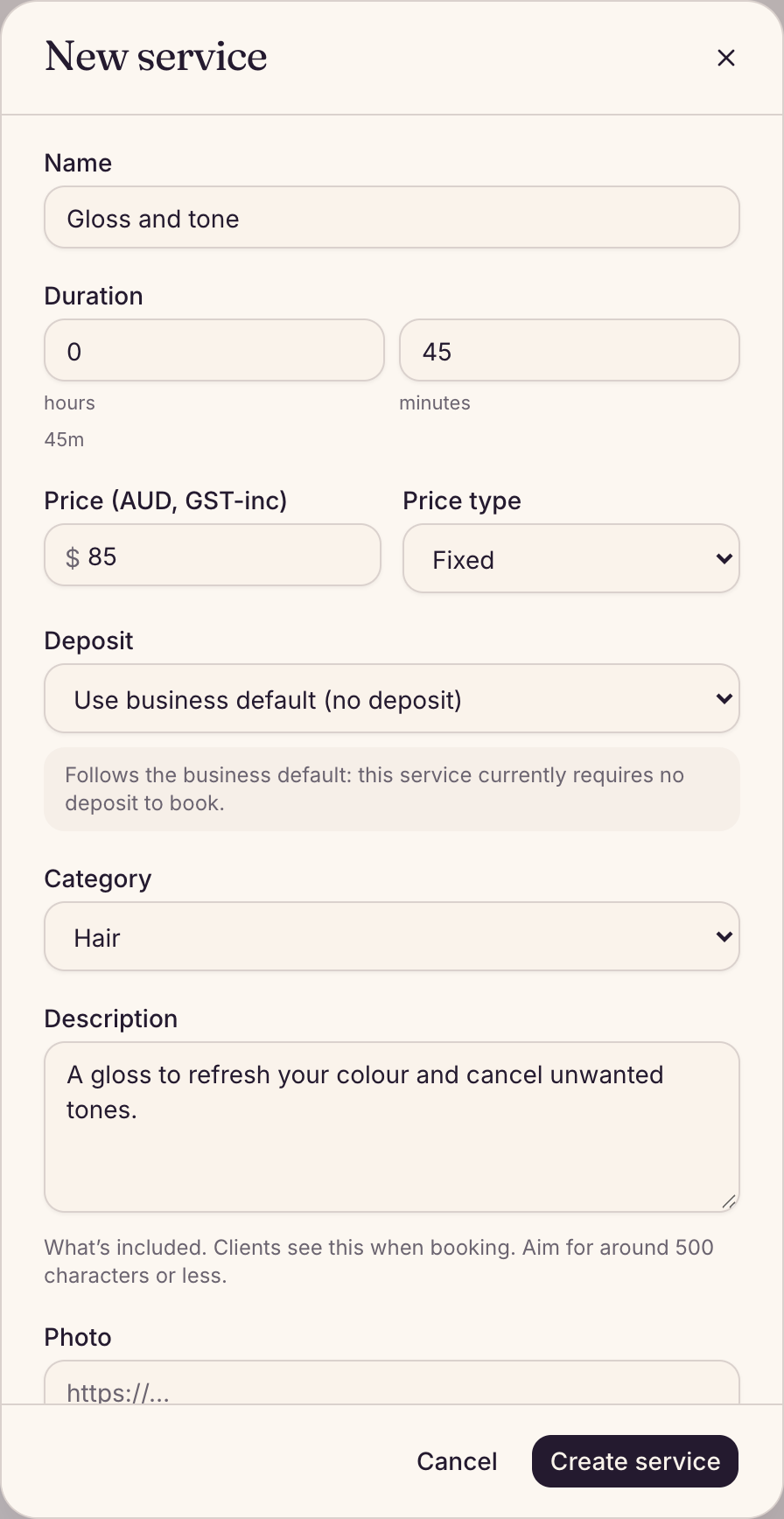
- Enter the Name, the Duration in hours and minutes, and the Price (AUD, GST-inc). Set Price type to From (indicative) if the final price can change.
- Under Deposit, leave the business default or choose another option. See Take a deposit when a client books.
- If you need a gap before or after the service, or part of it is unattended time such as colour developing, open Advanced and set Buffer before, Buffer after or Processing time. The buffer after can run past the end of the team member’s hours; the service itself can’t. A following booking or blocked time still stops it.
- To show clients what they are booking, choose Upload photo under Photo and pick a JPEG, PNG or WebP photo. A large photo is shrunk for you before it uploads. Choose Change photo to swap it or Remove photo to take it off. Clients see it beside the service on your booking page and can tap it to view it full size.
- Leave Online bookable ticked to show it on your booking page, then choose Create service (or Save changes).
A new service starts ticked for everyone on your team who is active and bookable. To change who does it, open Team, edit the team member and tick or untick it under Services.
Email aftercare after a service
- When you add or change a service on the web, write what a client should do afterwards in Aftercare, up to 2,000 characters. Line breaks are kept.
- The first time a client has that service, Preen emails it to them straight after you check them out, with your business name and logo. It never goes again for that service, and never by text. A sale with more than one service that has aftercare sends one email with a part for each.
- It goes only to a client with an email address, and not for a booking whose messages are switched off. Web addresses in it are left out, as in every email Preen sends your clients.
- Clients can find it again on their booking page for that visit, and under past visits in their Preen account.
- To stop sending it, turn off Aftercare in What we tell your clients in Settings. Aftercare emails are on Solo and above.
Reorder or delete categories and services
- Once you move anything on this page, your booking page lists categories and the services inside them in the order you set here. The first time you move anything, Preen numbers every category and every list of services; until then the booking page may show categories and services that were imported together in a different order from this page. Choose the up and down arrows (Move up, Move down) on a category to move it, or beside a service to move it within its category. The new order saves straight away.
- To remove a category, choose the bin button (Delete category) on it, then confirm. A category can only be deleted once it has no active services: if it still has some, Preen asks you to move or archive them first. Services you have switched off or archived move into a category called Uncategorised, which Preen makes if you don’t have one. If you switch one back on and its Online switch is on, clients see it under Uncategorised until you move it to a better category. You can’t delete Uncategorised while it still holds a service. If you import the same menu file again later, Preen will not move those services back out of Uncategorised, so give each one its category on this page. A service with no category at all is not on your booking page. Preen warns you on one that is switched on and set to show online.
Hide, archive or price by team member
- The Online switch next to a service hides it from your booking page. You can still book it yourself in the calendar.
- The Active switch archives a service you no longer offer. It stays in the list, shaded, so you can switch it back on.
- To charge a different price or take a different time for one team member, choose the people button next to the service (Team prices). Enter their price or time, or leave a box blank to use the service’s own, and choose Save. New bookings use these straight away. Bookings already made keep their price and time.
In the Preen app
- Open More, then Services. Not sure where a setting is? Type a word such as hours or deposit into Search settings at the top of More.
- Tap + New service, or tap a service to change it.
- Fill in the same details. Under Who performs it, tick the people who do it.
- Tap Create service or Save changes.
The Online switch in the list shows or hides a service on your booking page. To archive one, open it and tap Archive service. In the Preen app, tap Up or Down on a category or a service to change the order, and tap Delete on a category once it has no active services (its switched-off services move to Uncategorised). New categories, renaming and service photos are done on the web. Everyone on your team can see the menu in the app, and only owners and managers can change it.
Still stuck? Email support@preen.au, or see every guide.
Checked against Preen on .