Take a deposit when a client books
Ask for a deposit on a service, or on every online booking, and your client pays it by card when they book. Preen takes it off the bill at checkout. To take deposits, your business needs to be connected to Stripe in Settings, under Payments.
What's included
- Solo and above include card payments, checkout and receipts, marketplace listing, waitlist, reports and new consultation forms. Free includes the calendar, unlimited bookings, clients, services, your own booking link and client emails.
- Changing to Free never blocks redeeming or refunding a voucher already sold, completing or refunding payments already started, checking out a booking with money attached, or reading and exporting existing receipts and completed client records.
- Free includes client emails. Monthly client texts: Solo 100, Studio 300, Growth 750, Scale 1000. Long texts count as more than one text. Confirmations default to email and reminders to text for new businesses. Your saved choices stay as they are. The allowance follows your business timezone. At the limit, the same notice uses email when available. Without an email, Messages shows not sent: plan text limit. Settings shows the texts used and left this month, with notices at 75%, 90% and when they run out. If your business pays Preen by card, extra texts can keep going past the monthly number at 10c each including GST, up to a monthly limit you set in Settings ($20 unless you change it), added to your next invoice. Past the limit, or with extra texts off, the email rule above applies.
Set a deposit on a service
- On the web, open Services and choose the service, or choose Add service.
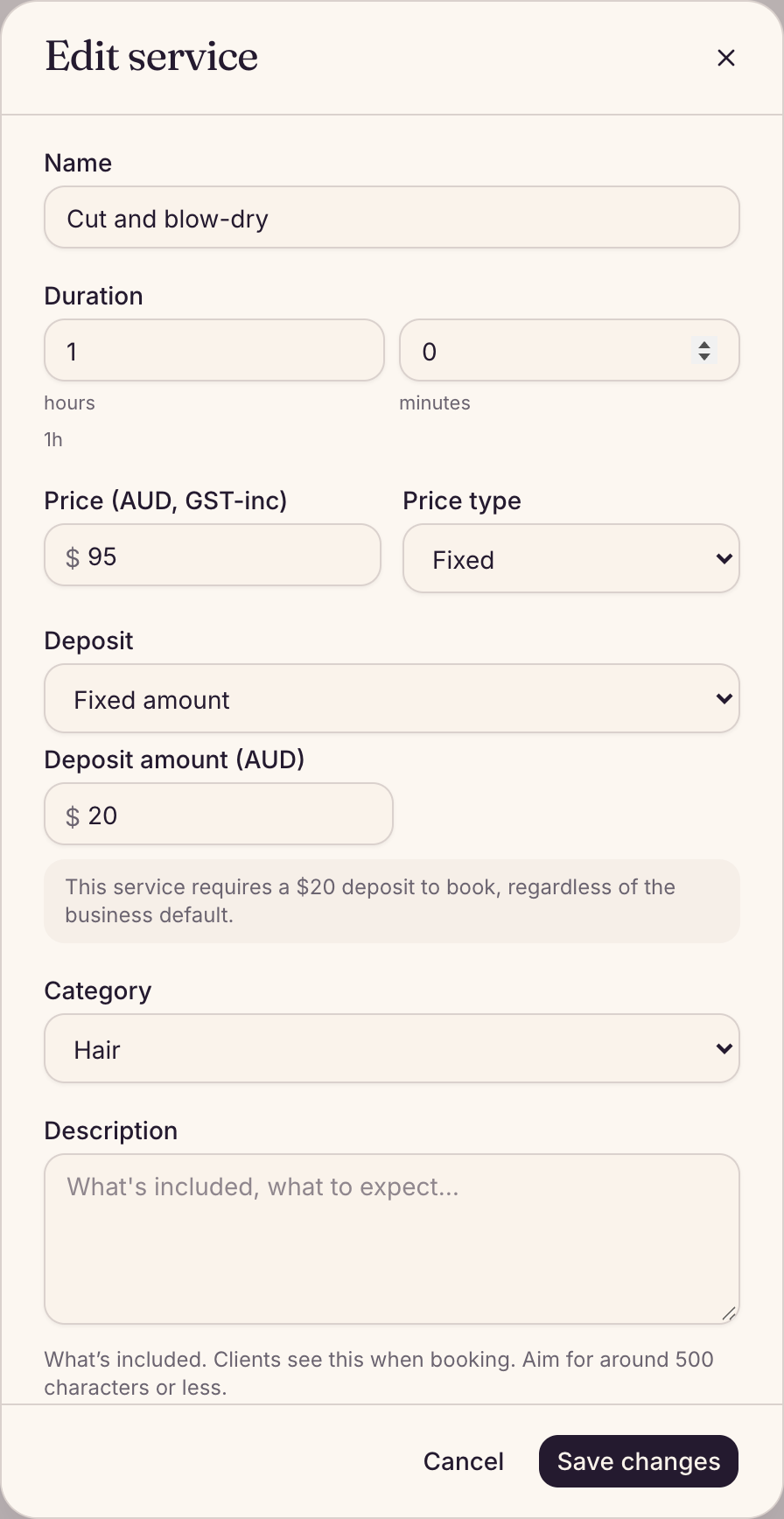
- Under Deposit, choose Fixed amount or Percentage of price.
- Enter the Deposit amount (AUD) or the Deposit percentage. A fixed deposit can’t be more than the service’s price.
- Check the line under the field, which says what the client will pay, then choose Save changes (or Create service for a new one).
Use business default follows your business deposit below, and No deposit means this service never asks for one. In the Preen app, open More, then Services, tap the service and choose under Deposit: Business default, No deposit, Fixed amount or Percentage. Owners and managers can change services.
Set a deposit for every online booking
- On the web, open Settings, find Booking policy and choose Edit.
- Tick Require a deposit to book.
- Choose Fixed amount or Percentage of price, and enter the amount.
- To keep the deposit when a client cancels or doesn’t turn up, tick Deposit is non-refundable. It covers every deposit your business takes, including a service’s own.
- Choose Save changes.
A service with its own deposit setting overrides this. A fixed business deposit is taken once per booking, however many services are booked. The business deposit is set on the web only. Turning Deposit is non-refundable on or off changes only bookings made after you save. Each booking keeps the terms it was made under.
What your client sees
- On your booking page, the service shows the deposit, such as “$20 deposit to book”.
- Once they pick a service, the booking page also says a deposit may be due and shows your cancellation window, and again on the details step just before they pay. The exact deposit is shown on the last step, worked out for that client and booking. If you keep the deposit when a client cancels, that is said too.
- After their details, the last step shows the booking (service, time, who, price) and then the deposit: “Your $20 deposit is charged when you book. The rest is paid in person.” They enter a card and tap Pay $20 and book. That one tap takes the deposit and makes the booking. There is no second step to forget.
- If their phone or browser has Apple Pay or Google Pay set up, they can pay the deposit with it instead of entering a card, on your booking page or a deposit link Preen sends. On your booking page the button reads Book with Apple Pay or Book with Google Pay: approving it in Apple Pay or Google Pay makes the booking straight away.
- Their card is only charged once the booking is saved. If the booking can’t be made (say the time was just taken), they are not charged and the page tells them.
- A booking with a deposit shows as Confirmed in your diary. An online booking with no deposit shows as Booked.
- Their confirmation email lists what they booked, the deposit paid, what is left to pay on the day and your cancellation rules, and has an Add to calendar link.
- If your deposit is non-refundable, the last step where they pay, the screen after they book, and the page a deposit link opens, all say: “Your $20 deposit is non-refundable if you cancel or don’t turn up. It comes off your bill on the day.” If one of those pages can’t load your deposit terms, it doesn’t take the deposit, and the client is asked to refresh.
- Clients booking in the Preen app finish a deposit booking on preen.au, because the app does not take cards.
Bookings you make yourself
A deposit is asked for on a booking you add yourself if Booking confirmations in Settings, or the client’s own confirmation setting, is set to Pay a deposit. Preen creates a link for the client to pay the deposit before the booking is confirmed. The link can be sent by text and email, depending on the client’s contact details and your message settings. Check which messages Preen queued after saving. A queued message has not necessarily been delivered.
- If the client already paid the deposit outside Preen, tick Deposit already paid outside Preen (for example in Fresha) when you add the booking. Preen then sends no deposit request for that booking. See Add a booking yourself.
- Preen does not ask for a deposit or full payment on that booking later either. If you choose Request confirmation for a deposit or full payment, Preen does not send it. This stays the same if you later change or remove the amount.
Choose for one client, or for one booking
Owners and managers can book someone in without asking for a deposit, even when the business usually asks. Staff and receptionists, and anyone limited to their own appointments or with client contacts hidden, can see the choice but cannot change it.
- On the client’s page, Deposit required follows your business settings when it is on. Turn it off and that client is not asked for a deposit automatically, whether you book them in or they book online. A card on file can still be required when they book online. Turn it on again and they follow the business settings. A custom rule is left as it is. On the phone it says Custom rule set on the website.
- When you add a booking, Payment policy shows what this booking will ask for, such as Deposit A$37.50, Card details only, or No deposit. On the web choose Change. In the app, tap the row. No deposit: No deposit needed to confirm this booking. Deposit upfront shows the amount for the services you chose. Card details only means the client adds a card to confirm, so you can charge cancellation and no-show fees. Full prepayment appears only if your business uses it. Tick Use this for [first name] every time to save that choice on the client’s page. Edit business defaults opens Booking confirmations in Settings.
- Where a deposit or a saved card is switched on, Settings says how many clients don’t pay a deposit, with See list. That list is the clients whose Deposit required setting is off.
- When a booking asks for nothing, the client is sent the usual booking confirmation, and the booking form tells you it was sent, or that it could not be. A booking whose time has already passed is not sent one, and the form says so.
- Saving a booking as no deposit does not stop you asking later. On the website, Request confirmation on the booking still sends the usual request, even for a client whose Deposit required is off. Only owners and managers can send it to that client. Once it is sent, the booking no longer counts as no deposit.
- When a request is cancelled or runs out, a Card details only, Deposit upfront or Full prepayment choice you made when you added the booking stays with that booking. A deposit asked with Request confirmation of a client whose Deposit required is off ends with that request: they are not asked one again unless you ask. Otherwise the booking asks what the client’s own setting and your business settings ask.
- If the booking confirmation has not gone out yet when a request is sent, the request replaces it, so the client gets one message. If you cancel that request while the booking is still to come, the client is sent the booking confirmation only when the booking then asks for nothing. If it still asks for something, such as a card or a deposit, nothing more is sent. A request that runs out sends nothing more, and its messages that have not gone out yet are withdrawn.
Cancel an unpaid deposit or payment request on the web
Open the booking in Calendar. While its request is waiting for payment, if you see Cancel deposit request, or Cancel payment request for a full payment, read the explanation and choose Yes, cancel request. If neither button is shown, request cancellation is not available for this booking.
- The payment link stops working. The client is not told the request was cancelled. Cancelling the request does not cancel the booking.
- If this request replaced the booking confirmation, or that confirmation could not be sent, the client is sent it now, but only if the booking is still to come and now asks for nothing, for example when the client’s Deposit required is off. If the booking still asks for something, such as a card or a deposit, nothing more is sent.
- Preen withdraws queued deposit and payment request messages for this request. A booking change message may still arrive with the old link. Messages already being sent may still arrive.
- If the client opens it, they see that the link is no longer active or needed. For questions about the booking, they are asked to contact your business.
- A paid request or a payment in progress cannot be cancelled. A payment may be waiting to be checked. Check the booking again later. If a payment does not clear, contact Preen support.
- After cancellation, you can change the services and price unless another payment, sale or open checkout prevents it.
- You do not have to cancel the request to change the booking. While the client has not started paying, you can change its services, team member, length or price: the same link then shows the updated booking and the right deposit, or the right amount for a full payment, and Preen sends the client the updated details. See Change a booking, or the service at the appointment.
At checkout
The deposit is taken off for you. On the web it is listed as Deposit (paid at booking), and in the app as Deposit already paid. See Check out a client.
If the booking is cancelled or a no-show
- If your client cancels online with the link in their booking messages, Preen refunds the deposit to their card, less any fee your cancellation policy charges for that notice (unless it is non-refundable, below).
- If the booking was made while Deposit is non-refundable was ticked (and, for an online booking, the client was shown it before paying), nothing is refunded when the client cancels or doesn’t turn up, up to the price of the booking. On the website, before they confirm, their cancel screen says “Your $20 deposit won’t be refunded.” If a fee for that notice is more than the deposit, only the difference can be charged to their card. The deposit is refunded in full if you cancel, or if Preen cancelled it because a confirmation request ran out. If you changed the booking’s start time after the deposit was paid, the deposit is no longer kept automatically: your usual cancellation policy applies instead. Swapping the team member at the same time, a move before the deposit was paid, or a move the client made does not change it. A client marked Fee exempt gets their deposit back, and a full payment taken upfront is refunded under your cancellation policy as usual.
- If you cancel it, Preen asks Who cancelled? Choose The client asked and your cancellation policy applies, so some or all of the deposit may be kept (all of it, if the deposit is non-refundable). Choose We cancelled and the whole deposit is refunded, even a non-refundable one. Each choice says exactly what will happen before you confirm.
- When you mark a no-show, the deposit is not refunded. If your policy charges a no-show fee, the deposit already paid is taken off it.
- If a client cancels a deposit booking inside the Preen app, Preen queues any refund to their card. A refund that needs checking appears in Payment review. A non-refundable deposit is not refunded. The app’s cancel screen does not show the deposit terms yet; the website’s does.
Still stuck? Email support@preen.au, or see every guide.
Checked against Preen on .