Block out time, time off and closures
Blocked time, time off and closures are times nobody can be booked. The calendar shades them and online booking skips them. Bookings already in that time stay where they are. Owners and managers add them, on the web or in the Preen app.
On the web
- Open Calendar and choose Block time. You can also drag over empty time in a team member’s column, or open Settings, choose Bookings & policies, then Manage blocked time.
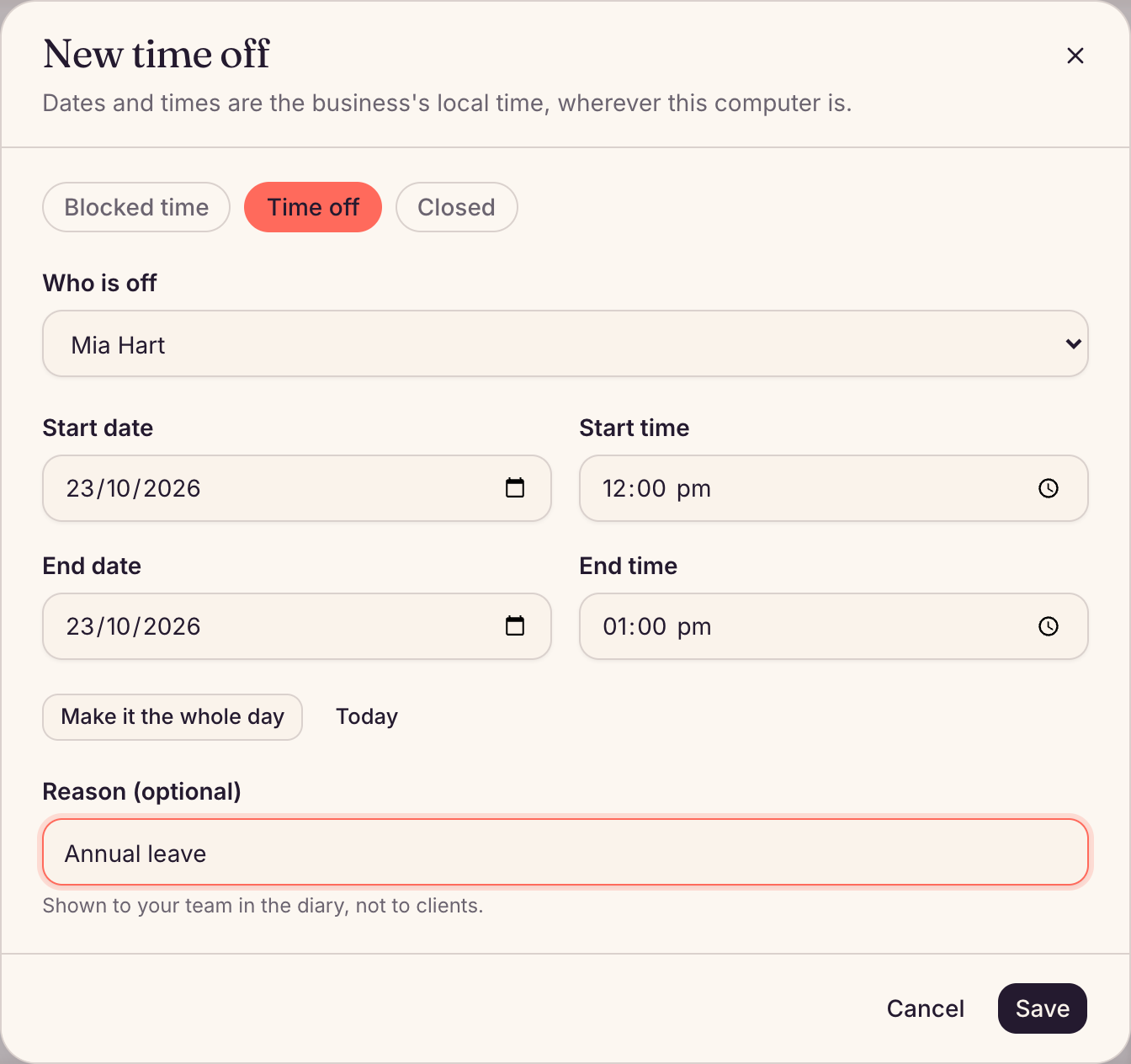
- Choose what it is: Blocked time for one person or Everyone, Time off for one person’s leave, or Closed for the whole business.
- Set the dates and times. Make it the whole day fills in the whole day. A closure takes a First day and a Last day.
- For a blocked time, you can pick a Colour (optional) so you can tell blocks apart in the calendar.
- Add a Reason (optional), such as Training. Your team sees it in the calendar. Clients do not.
- Choose Save.
If bookings are already in that time, Preen lists them and asks again. Saving does not cancel or move them. Choose Save anyway, then move them in the calendar if you need to.
In the Preen app
- Open More, then Blocked time & time off.
- Tap + Close the business, + Block time or + Add time off.
- Choose who it is for, set when it Starts and Ends (the First day and Last day for a closure), and add a Reason (optional).
- For a blocked time, you can also pick a Colour (optional) so you can tell blocks apart in the diary.
- Tap Save.
Change or remove it
- On the web, choose the shaded time in the calendar, or choose it in the list under Manage blocked time. In the app, tap it in the list.
- Change it and choose Save, or choose Remove, then Remove again to confirm. Clients can then book that time again.
- To tell blocked times apart in the calendar, pick a Colour (optional) when you block time or change one. Each blocked time can have its own, and choosing the plain swatch gives it the usual look. The colour is only for you and your team. Clients never see it. Time off and closures do not take a colour: they keep their usual look in the calendar.
- The editor, on the web and in the app, names what you chose: New blocked time, New time off or New closure(and Change closure when you open one). Removing a closure asks Remove this closure? and says clients can book these days again.
- For a day off every week, take that day out of the person’s roster instead. See Set your opening hours and team hours.
Still stuck? Email support@preen.au, or see every guide.
Checked against Preen on .