Cancel a booking or mark a no‑show
Cancel a booking when it is not going ahead, and mark a no‑show when the client did not come. Neither can be undone. When you cancel, Preen shows what will happen to any deposit or fee before you confirm.
What's included
- Solo and above include card payments, checkout and receipts, marketplace listing, waitlist, reports and new consultation forms. Free includes the calendar, unlimited bookings, clients, services, your own booking link and client emails.
- Changing to Free never blocks redeeming or refunding a voucher already sold, completing or refunding payments already started, checking out a booking with money attached, or reading and exporting existing receipts and completed client records.
- Free includes client emails. Monthly client texts: Solo 100, Studio 300, Growth 750, Scale 1000. Long texts count as more than one text. Confirmations default to email and reminders to text for new businesses. Your saved choices stay as they are. The allowance follows your business timezone. At the limit, the same notice uses email when available. Without an email, Messages shows not sent: plan text limit. Settings shows the texts used and left this month, with notices at 75%, 90% and when they run out. If your business pays Preen by card, extra texts can keep going past the monthly number at 10c each including GST, up to a monthly limit you set in Settings ($20 unless you change it), added to your next invoice. Past the limit, or with extra texts off, the email rule above applies.
Cancel a booking on the web
- Open Calendar and choose the booking.
- Under Update status, choose Cancelled in the list, then choose Update.
- Choose a Cancellation reason from the list, such as Client cancelled or Client unwell. For anything else, choose Other and type a short reason. Preen needs one.
- Preen may ask Who cancelled? Choose The client asked or We cancelled. When Preen can check the booking’s money, each answer says what will happen to it. Owners, managers and receptionists are asked when the client paid a deposit or saved a card for this booking, or when Preen cannot check. A staff login is asked every time, and only an owner, manager or receptionist can record The client asked.
- Choose Confirm cancellation. To leave it as it is, choose Keep booking.
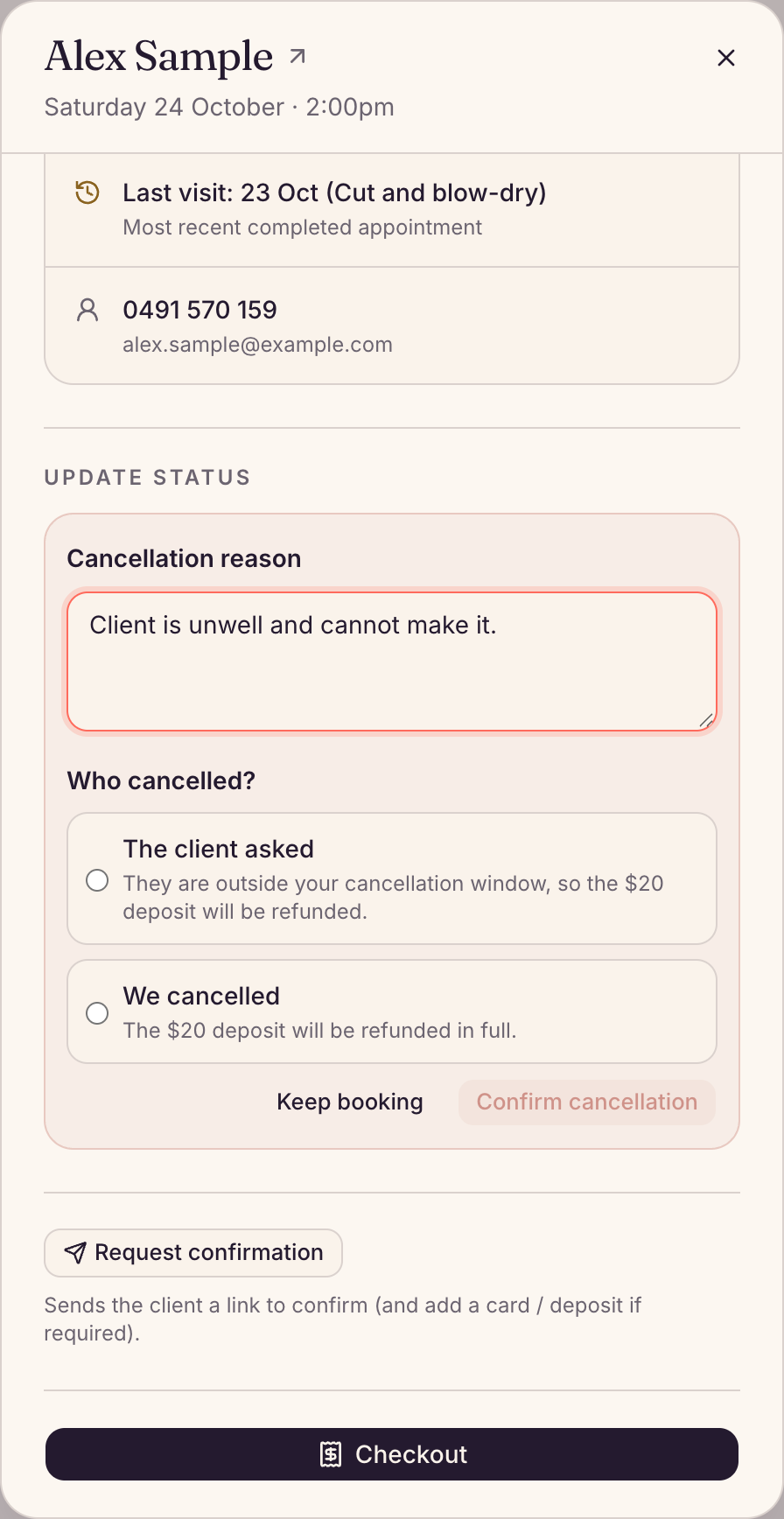
Cancel a booking in the Preen app
- In the Diary, tap the booking, then tap Cancel.
- Choose why it is being cancelled from the list. For anything else, tap Other and type a short reason.
- If Preen asks Who cancelled?, choose The client asked or We cancelled, then tap Cancel. Back leaves the booking as it is. A staff login is asked every time, and only an owner, manager or receptionist can record The client asked.
What cancelling does
- The client asked: your cancellation policy applies, so some or all of a deposit may be kept, and a fee may be charged to the card that secured the booking. We cancelled: the client is not charged, and a deposit they paid is refunded in full.
- Your client gets your Cancellation message, if you have it turned on.
- To see cancelled bookings in the calendar, tick Show cancelled.
- Your fees are set in your policy. See Set your cancellation and no-show fees.
Mark a no-show
- Once the appointment’s start time has passed, open it in Calendar.
- Under Update status, choose No-show, then choose Update.
- Preen asks Mark as No-show? Choose Yes, mark No-show.
In the Preen app, tap the booking in the Diary and tap Mark no-show. The app records it straight away, without asking again.
What a no-show does
- No-show is only offered once the start time has passed. On the web it is not offered once the booking is marked Arrived.
- A deposit the client paid is not refunded.
- If Automatically charge the no-show fee is ticked in your cancellation policy and the client has a card on file, Preen charges the fee, less any deposit, and tells you what happened. If it is not ticked, no fee is charged automatically: an owner or manager can charge it from the client’s page with Charge card on file.
- A receptionist’s login records the no-show, but never charges the fee.
Still stuck? Email support@preen.au, or see every guide.
Checked against Preen on .