Set your cancellation and no‑show fees
Your booking policy and cancellation policy decide what clients can do online and what a late cancellation or a no‑show costs. Owners and managers set them on the web, in Settings, under Bookings & policies. Fees need card payments connected, and a deposit or a saved card to take them from.
What's included
- Solo and above include card payments, checkout and receipts, marketplace listing, waitlist, reports and new consultation forms. Free includes the calendar, unlimited bookings, clients, services, your own booking link and client emails.
- Changing to Free never blocks redeeming or refunding a voucher already sold, completing or refunding payments already started, checking out a booking with money attached, or reading and exporting existing receipts and completed client records.
Set your booking rules and no-show fee
- In Settings, choose Bookings & policies, then choose Edit on Booking policy.
- Set Minimum notice, how much notice a client must give to book online, and How far ahead clients can book. Pick from the list, or choose Custom… to type your own time.
- Tick No same-day online bookings if you only want clients to book from tomorrow onwards. You can still add same-day bookings yourself.
- Set Online cancelling closes. Clients can cancel or move a booking online until this many hours before it. After that, Preen asks them to contact you. Choose At the start time to let them cancel online right up to the appointment, with your fee tiers deciding what it costs.
- Under No-show fee, choose Fixed amount (never more than the service price) or Percentage of the service, and enter it.
- To have a card to charge without taking a deposit, tick Require a card on file to book. Clients then save a card when they book online. It is not charged when they book.
- Choose Save changes.
Until card payments are set up, Preen will not let you set a no-show fee, a deposit, a card on file or fee tiers. See Connect card payments with Stripe.
Keep a service to certain days
- In Settings, choose Bookings & policies, then choose Add a service day on Service days. Give it a name, such as Training Fridays.
- Choose the days of the week, then the whole day or set hours, and whether it is for the whole team or chosen people. Choose the services it is about.
- Tick These services can only be booked online on these days to stop clients booking them at any other time. Tick Keep these days for these services only to stop clients booking anything else online on those days. You can tick both.
- Add a message for clients if you like, and a from and until date if it is only for a while. The sentence under the form says what it does. Choose Save service day.
Service days only apply to clients booking online. In your own calendar Preen shows a note when a booking falls on a service day, and you can still book it.
Set your late cancellation fees
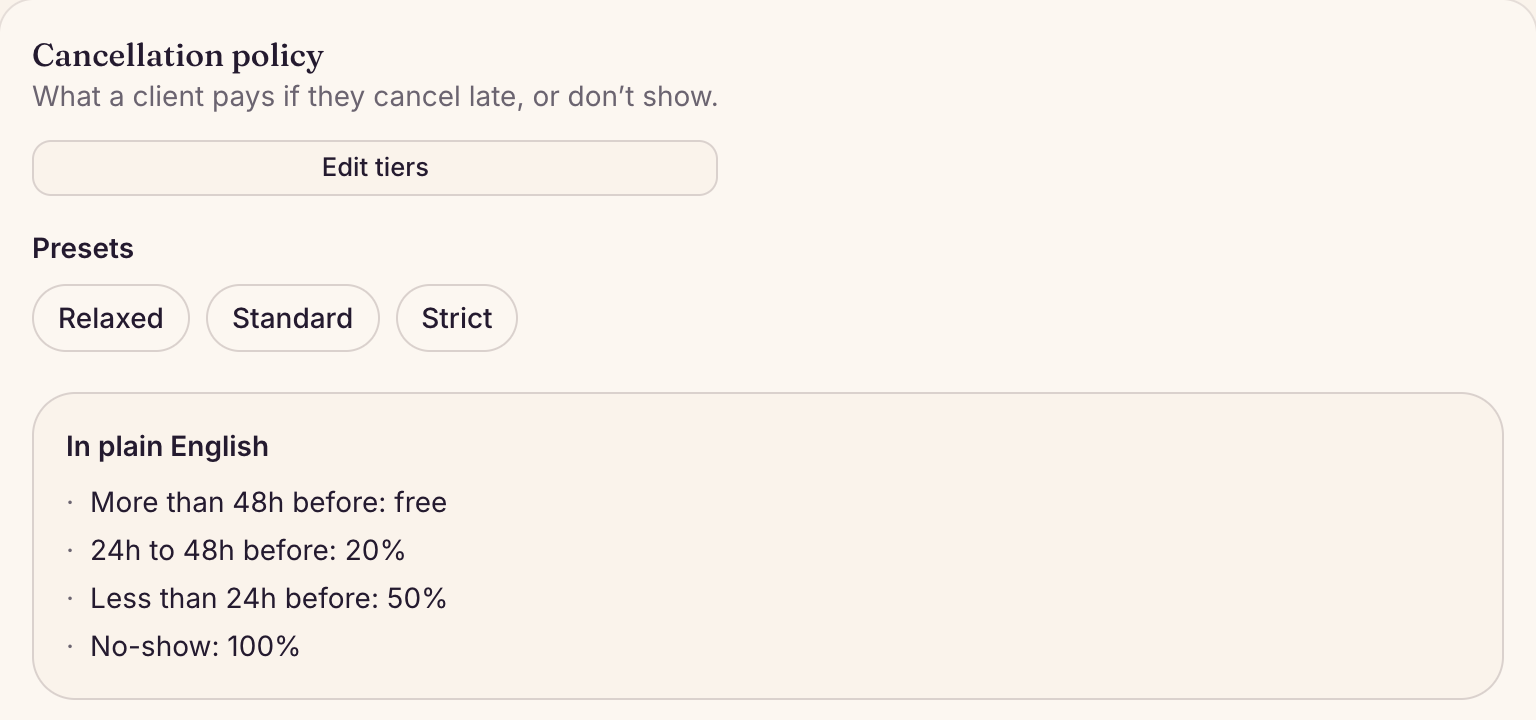
- On Cancellation policy, choose a preset: Relaxed, Standard or Strict. Preen shows what it sets, including its no-show fee. Choose Replace tiers to use it.
- Or choose Edit tiers. Each tier has Hours before and Charge %, a share of the service price. Choose Add tier for another, then Save changes.
- Check In plain English, which says what a client pays at each point, and use the Try it box to test a number of hours.
Charge fees automatically, or yourself
- Automatically charge the no-show fee: when ticked, marking a no-show charges the fee, less any deposit already paid, to the client’s saved card. A client with no card on file is not charged.
- Automatically charge late online cancellations: when ticked, a client who cancels online inside a paid tier is shown the fee, after any deposit, and is only charged once they accept it.
- Both are off until you tick them.
- A deposit the client paid counts towards the fee first. See Take a deposit when a client books.
- To take a fee yourself, an owner or manager opens the client in Clients and chooses Charge card on file under Cards on file.
- When you cancel a booking, Preen may ask who cancelled, so the right fee applies. Cancelling the rest of a repeat is recorded as the business cancelling, with no fee; a visit that has a deposit or a payment has to be cancelled on its own first. See Cancel a booking or mark a no-show.
Still stuck? Email support@preen.au, or see every guide.
Checked against Preen on .