Change a booking, or the service at the appointment
Open the booking and choose Edit booking. You can change the service, the team member, the length and the price, add another service or remove one, and it stays the same booking. It works on the web and in the Preen app while the booking is booked, confirmed, arrived or in progress. A sale, a checkout or a payment that is not finished yet can stop or limit a change: see Which bookings you can change.
What's included
- Solo and above include card payments, checkout and receipts, marketplace listing, waitlist, reports and new consultation forms. Free includes the calendar, unlimited bookings, clients, services, your own booking link and client emails.
- Changing to Free never blocks redeeming or refunding a voucher already sold, completing or refunding payments already started, checking out a booking with money attached, or reading and exporting existing receipts and completed client records.
- Free includes client emails. Monthly client texts: Solo 100, Studio 300, Growth 750, Scale 1000. Long texts count as more than one text. Confirmations default to email and reminders to text for new businesses. Your saved choices stay as they are. The allowance follows your business timezone. At the limit, the same notice uses email when available. Without an email, Messages shows not sent: plan text limit. Settings shows the texts used and left this month, with notices at 75%, 90% and when they run out. If your business pays Preen by card, extra texts can keep going past the monthly number at 10c each including GST, up to a monthly limit you set in Settings ($20 unless you change it), added to your next invoice. Past the limit, or with extra texts off, the email rule above applies.
On the web
- Open Calendar and choose the booking. Its details open at the side.
- Choose Edit booking.
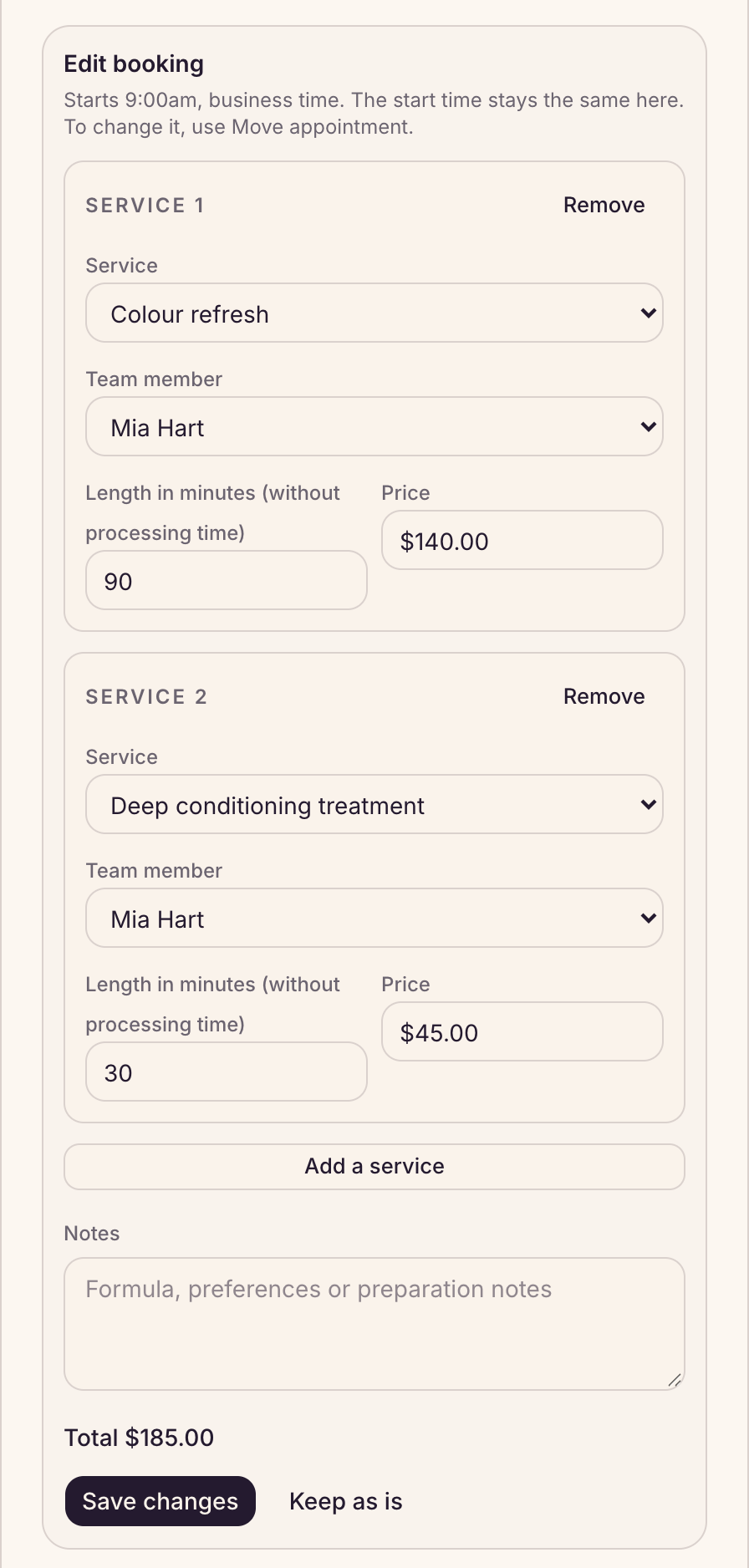
- For each service, change the Service, the Team member, the Length in minutes (without processing time) or the Price. A new service comes in at its usual length and price for that team member, unless you type your own.
- To add a service, choose Add a service. To take one off, choose Remove next to it. A booking keeps at least one service, and can have up to 10. A service that has been on a sale, even one that was later voided, cannot be removed, but you can change it.
- Check the Total and choose Save changes. You will see “Booking updated.”
In the Preen app
- In the Diary, tap the booking, then tap Edit booking.
- Change the Service, pick the team member under With, use − and + to change the Length (without processing time), and type the Price.
- Tap + Add a service to add one, or Remove to take one off.
- Tap Save.
Which bookings you can change
- You can edit a booking that is booked, confirmed, arrived or in progress. A completed (Finished, in the app), cancelled or no-show booking cannot be edited.
- Once the client has been checked out, the sale has to be voided before the booking can be edited. After that, the services on that sale can be changed but not removed.
- While a checkout is open for the booking, finish it or cancel it first.
- While a Tap to Pay sale is open for the booking, its services and prices cannot change. Finish it, or choose another payment method at checkout.
- While a payment for the booking is still going through, try again once it has finished.
- If the client has a deposit or payment request they have not paid yet, you can still change the services, team member, length and price. Preen prices the request again for the new total, on the same payment link, so the client’s link shows the updated booking and the right deposit, or the right amount for a full payment. It also sends the client the updated details, on the channels the request first went out on. Before you save, the edit form says so. Afterwards it tells you the updated details and the new amount are on their way, or, if the client could not be messaged, that you need to send the link again from the booking.
- If the change would leave nothing to pay, Preen refuses it. The message says the booking would not need a deposit. Cancel the request first, then make the change. On the web, open the booking. If you see Cancel deposit request, or Cancel payment request for a full payment, choose it, then Yes, cancel request. If neither button is shown, request cancellation is not available for this booking. The payment link stops working. The client is not told the request was cancelled. Cancelling the request does not cancel the booking. Preen withdraws queued deposit and payment request messages for this request. A booking change message may still arrive with the old link. Messages already being sent may still arrive. If the client opens it, they see that the link is no longer active or needed. For questions about the booking, they are asked to contact your business.
- Once the client has started paying that request, or has paid it, the services, team member, length and price cannot change. Notes can still be edited. To move the time, use Move appointment on the web or Reschedule in the app. If a payment is going through at that moment, try again once it has finished. A paid request or a payment in progress cannot be cancelled. A payment may be waiting to be checked. Check the booking again later. If a payment does not clear, contact Preen support.
- If the client has already paid a deposit, you can still edit, but the total cannot go below what they paid up front.
If the change is outside hours or overlaps another booking
- When a service or length change overlaps another booking, Preen asks This overlaps another booking. Check who and when, then choose Book anyway and Yes, book under Are you sure? to save the change, or Back to keep editing. Clients still can’t book over it online. You can also confirm an overlap when lengthening a booking already in progress. An overlap cannot be confirmed if the edited booking ends in the past.
- For a change outside the roster, Preen shows the time and the team member’s hours. Choose Save anyway, then Yes, save, or Back to keep editing. Shortening or swapping a service within the booking’s existing time for the same team member does not need this roster confirmation.
- The same choice is available when you move an individual booking, including dragging it to another team member. If the time is also outside their roster, the confirmation says so. Leave, blocked time and closures still stop the change. Repeat bookings still need a free time.
- If your phone version does not show the overlap choice, use the web calendar. A booking that could not be saved has not been moved or changed.
What Edit booking does not do
- It does not change the start time. To move the booking, use Move appointment on the web or Reschedule in the app, while the booking is booked or confirmed. Moving it sends the client your Booking moved message, if you have that message turned on.
- It does not message the client, even when you change the team member, with one exception: if the client has a deposit or payment request they have not paid, the client is sent the updated details (see Which bookings you can change). On a booking with one service, you can change the team member with Move appointment or Reschedule instead, and the client gets your Booking moved message if it is on. On a booking with more than one service, those only move the time: a team member change goes through Edit booking, and no message goes out unless the exception above applies.
When your client moves their own booking
- From the link in their booking messages, a client can choose Move this booking, pick a time under Choose a new time and choose Confirm new time. Keep current time goes back without changing anything. Signed in to their Preen account, they open the booking from Change or cancel and choose Reschedule. In the Preen app, Your next booking opens from Change or cancel. A later booking under Coming up opens when they tap that booking. Then they choose Move this booking, Choose a new time, Confirm new time and Keep current time. Your Online cancelling closes setting decides how long they can do this. See Set your cancellation and no-show fees.
- A booking with more than one service moves as a whole. The times the client is offered are the times when every service fits, one after the other as booked, and each service stays with the same team member. Their services, deposit and card on file stay as they are.
- In some cases the client sees Moving online isn’t available for this booking and is asked to contact your business. If a cancellation fee applies at that notice, they see Moving online is no longer available instead, and can review the fee before cancelling.
- An upcoming booking has an Add to calendar button on the booking page and on the booking in their Preen account. When they have more than one coming up, the later ones sit under Coming up. It gives them a calendar file that Apple Calendar, Google Calendar and Outlook can open. It is not shown once the booking is cancelled, finished, a no-show or in the past.
- In the Preen app, a client taps Add to calendar under their next booking, under Coming up, or on the booking itself. They choose Apple Calendar on an iPhone or iPad, Phone calendar on an Android phone, or Google Calendar. If the phone’s calendar cannot open, Google Calendar opens instead.
Still stuck? Email support@preen.au, or see every guide.
Checked against Preen on .