Use the waitlist
When you are fully booked, put the client on your waitlist. When a spot opens, Preen can tell the people waiting for it, or you can text them yourself, and book them in. You add clients to the waitlist yourself, on the web. Anyone on your team can use it.
What's included
- Solo and above include card payments, checkout and receipts, marketplace listing, waitlist, reports and new consultation forms. Free includes the calendar, unlimited bookings, clients, services, your own booking link and client emails.
- Changing to Free never blocks redeeming or refunding a voucher already sold, completing or refunding payments already started, checking out a booking with money attached, or reading and exporting existing receipts and completed client records.
- Free includes client emails. Monthly client texts: Solo 100, Studio 300, Growth 750, Scale 1000. Long texts count as more than one text. Confirmations default to email and reminders to text for new businesses. Your saved choices stay as they are. The allowance follows your business timezone. At the limit, the same notice uses email when available. Without an email, Messages shows not sent: plan text limit. Settings shows the texts used and left this month, with notices at 75%, 90% and when they run out. If your business pays Preen by card, extra texts can keep going past the monthly number at 10c each including GST, up to a monthly limit you set in Settings ($20 unless you change it), added to your next invoice. Past the limit, or with extra texts off, the email rule above applies.
Add a client to the waitlist
- Open Waitlist and choose Add to waitlist.
- Search for the Client and choose them. They need to be in Preen already. Choose the Service, and a Preferred staff member or Any staff member.
- Add a Preferred date and a Time of day if they have one. With no date, they show as Flexible.
- If the client asked to be told when a spot opens, tick that box, choose how they asked, and choose Text or Email under Tell them by. Preen needs this before it can tell them.
- Add any Notes and choose Add to waitlist.
When a spot opens
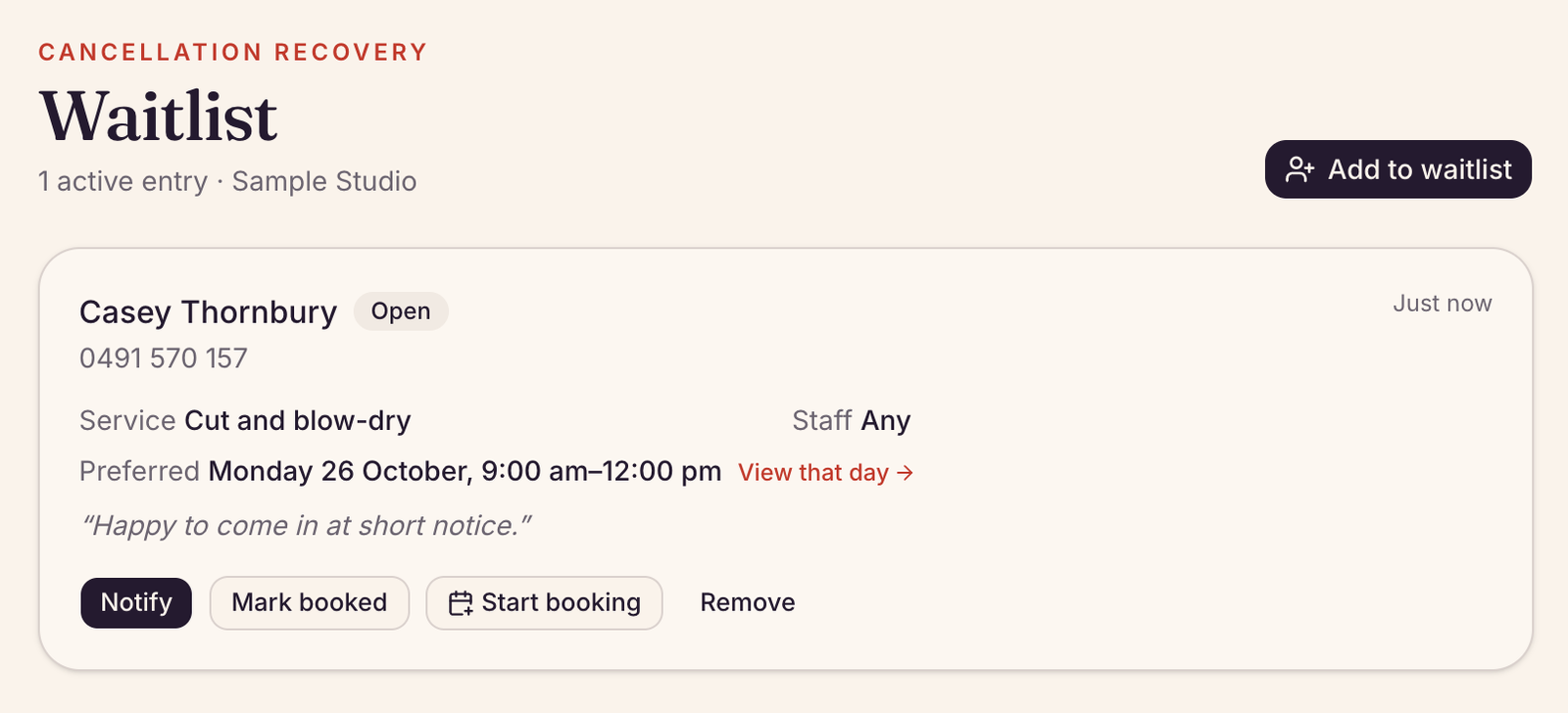
- Find the client on the waitlist and choose Notify. Preen queues a text, usually sent within a minute. At your text limit, it uses the client’s email instead. Without an email, Messages shows “not sent: plan text limit”. Follow the outcome in Messages. Notify again queues another notice.
- To book them, choose Start booking. The calendar opens a new appointment with the client and service filled in. Set the time and choose Create appointment. Preen then marks the waitlist entry booked.
- If you booked them another way, choose Mark booked. To take them off the list, choose Remove.
See Add a booking yourself for the rest of the new appointment window.
Let Preen tell the waitlist
- At the top of Waitlist, When a spot opens, tell the waitlist automatically is on unless you turn it off. Owners and managers can change it. When it is off, nothing goes until you choose Notify.
- When a booking is cancelled or moved, Preen looks for people waiting for that service, with that team member or anyone, whose preferred day and time fit. It tells up to 3 of them, the longest waiting first, by text or email as each chose. If nobody has booked it 15 minutes later, it tells the next 3.
- Preen only offers a time clients could book on your booking page right now. A service that is not bookable online is never sent on its own; use Notify for it.
- Nothing goes out between 8pm and 8am your time. A spot that opens overnight is sent at 8am if nobody has booked it by then.
- Each message has a link that opens your booking page with that time picked. The first person to book gets it. Anyone who opens the link after that sees that the spot has been taken and that they are still on the waitlist.
- Texts count toward your monthly texts. A client who has opted out of texts is not texted, and nobody is told about more than one spot an hour.
- Each entry shows when Preen told them, for example Told automatically at 3:12pm by text, and how they want to be told under Tell them by. Once someone books, choose Mark booked so they are not told about other spots.
Still stuck? Email support@preen.au, or see every guide.
Checked against Preen on .