Add a booking yourself
When a client calls, messages or asks at the desk, add the booking yourself. It goes in the calendar straight away. Anyone on your team can add bookings, on the web or in the Preen app.
What's included
- Solo and above include card payments, checkout and receipts, marketplace listing, waitlist, reports and new consultation forms. Free includes the calendar, unlimited bookings, clients, services, your own booking link and client emails.
- Changing to Free never blocks redeeming or refunding a voucher already sold, completing or refunding payments already started, checking out a booking with money attached, or reading and exporting existing receipts and completed client records.
- Free includes client emails. Monthly client texts: Solo 100, Studio 300, Growth 750, Scale 1000. Long texts count as more than one text. Confirmations default to email and reminders to text for new businesses. Your saved choices stay as they are. The allowance follows your business timezone. At the limit, the same notice uses email when available. Without an email, Messages shows not sent: plan text limit. Settings shows the texts used and left this month, with notices at 75%, 90% and when they run out. If your business pays Preen by card, extra texts can keep going past the monthly number at 10c each including GST, up to a monthly limit you set in Settings ($20 unless you change it), added to your next invoice. Past the limit, or with extra texts off, the email rule above applies.
On the web
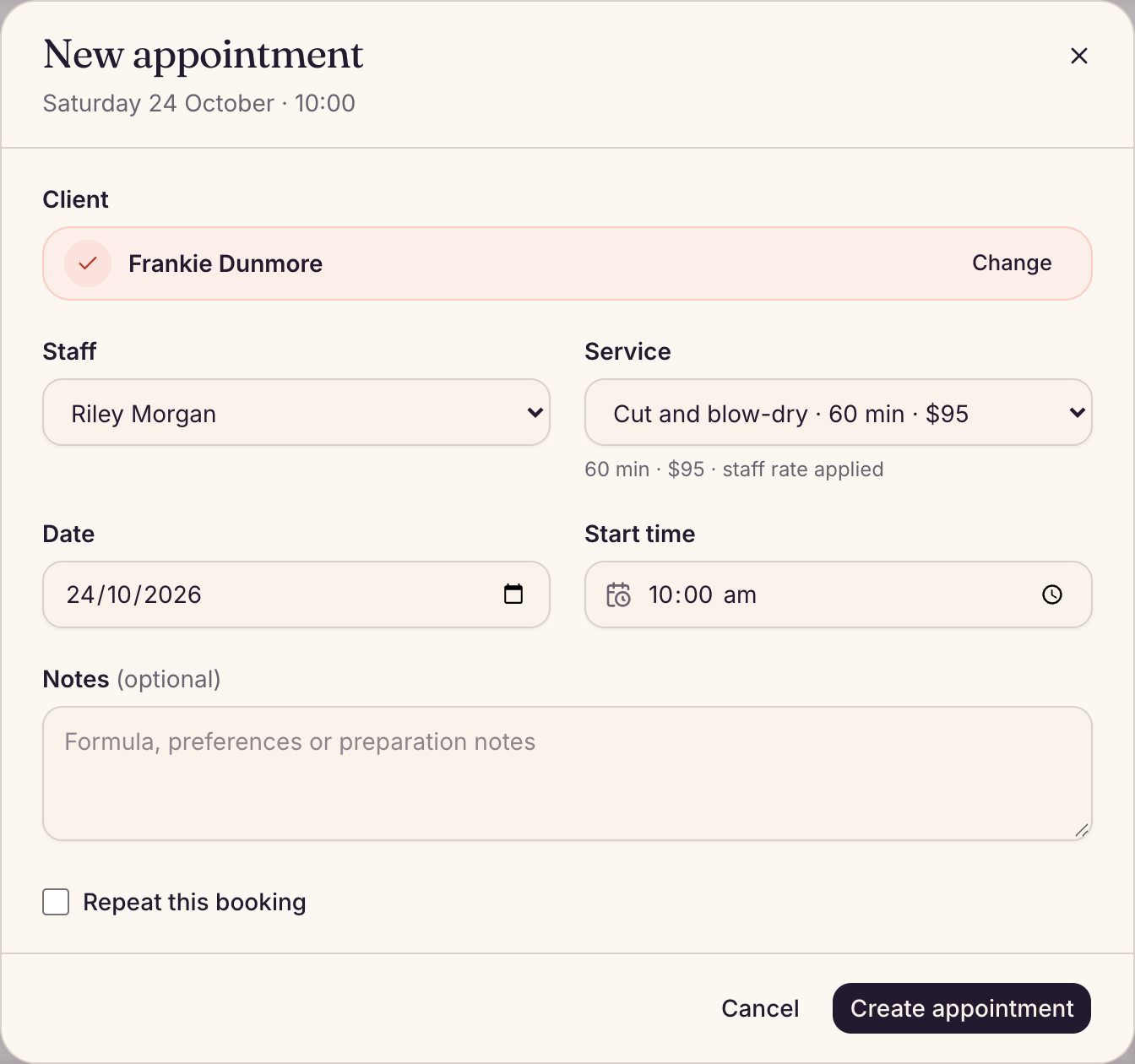
- Open Calendar and choose New appointment (the + button on a small screen), or click an open time in a team member’s column.
- Under Client, search by name or phone and choose the client. For someone new, type their name, choose the + Add line under the results, enter their First name and Mobile (and their Last name and Email if you have them) and choose Add client.
- Choose who is doing it under Staff, then the Service. Its length and price show underneath.
- For more than one service, choose + Add another service and pick the Service and Team member for each. Each one starts when the one before it ends, plus any buffer time. A booking can have up to 10.
- Check the Date and Start time, add any Notes, and choose Create appointment.
If the time is outside the team member’s hours, Preen shows the time and their hours. Choose Book anyway, then Yes, book under Are you sure? to book it, or Back to change it. Clients still cannot book those times online. If it overlaps another booking, Preen asks This overlaps another booking. Check the team member and time, then choose Book anyway and Yes, book, or Back. Clients still can’t book over it online. Leave, blocked time and closures cannot be booked through. A past overlap cannot use Book anyway. This choice is for individual bookings, including bookings with several services. Repeat bookings still need a free time.
If the client already paid the deposit outside Preen
Use this when a client paid the deposit for this booking somewhere else, for example in Fresha. Owners and managers can do it on the web, for one booking that needs a deposit, with one or more services. It cannot be a repeat booking. It is not available in the Preen app.
- Fill in the Client, Staff, Service, Date and Start time as above.
- Under Notes, find: Deposit already paid outside Preen (for example in Fresha). Tick it. Owners and managers see this on the web when the booking needs a deposit and Repeat this booking is unticked. Staff and receptionists cannot use this option.
- Check Amount already paid (AUD). Preen fills in the deposit amount. Change it to what the client actually paid. It must be more than $0.00 and no more than the booking total.
- Choose Create appointment.
Preen records the amount as Paid outside Preen and takes it off at checkout. No deposit request or payment link is sent for the booking, even if the client paid less than the deposit. Any balance is due at checkout. Some older versions of the Preen phone app show this as Paid in Fresha. You cannot tick Repeat this booking at the same time. What the client is sent when you add the booking depends on their confirmation step. If this client has their own setting, that one applies. Otherwise your Booking confirmations setting applies. With no confirmation step, the usual booking confirmation may still be sent. With a confirmation, deposit, full payment or saved card step, Preen sends no message when you add the booking. See Check out a client for taking the amount off and correcting it.
Cancel an unpaid deposit or payment request on the web
Open the booking in Calendar. While its request is waiting for payment, if you see Cancel deposit request, or Cancel payment request for a full payment, read the explanation and choose Yes, cancel request. If neither button is shown, request cancellation is not available for this booking.
- The payment link stops working. The client is not told the request was cancelled. Cancelling the request does not cancel the booking.
- If this request replaced the booking confirmation, or that confirmation could not be sent, the client is sent it now, but only if the booking is still to come and now asks for nothing, for example when the client’s Deposit required is off. If the booking still asks for something, such as a card or a deposit, nothing more is sent.
- Preen withdraws queued deposit and payment request messages for this request. A booking change message may still arrive with the old link. Messages already being sent may still arrive.
- If the client opens it, they see that the link is no longer active or needed. For questions about the booking, they are asked to contact your business.
- A paid request or a payment in progress cannot be cancelled. A payment may be waiting to be checked. Check the booking again later. If a payment does not clear, contact Preen support.
- After cancellation, you can change the services and price unless another payment, sale or open checkout prevents it.
Book the same thing on a regular basis
On the web, for a booking with one service, tick Repeat this booking and choose Choose dates. Choose how often it repeats and when it ends, then Check dates. Preen checks every date before anything is booked. Then choose the Book button, which says how many visits it will book. Your client gets one message listing the dates (when Booking confirmed is on for that channel), rather than one for each visit. Repeat bookings are made on the web.
In the Preen app
- In the Diary, tap + or tap an open time.
- Under Client, search and tap the client, or type a new client’s name and tap the + Add line to add them.
- Tap who is doing it under Staff, then the Service. For more than one service, tap + Add another service.
- Set the Date and start time, add any Notes (optional), and tap Create appointment. If your version shows This overlaps another booking, check it and tap Book anyway, then Yes, book in the confirmation, or Back. Older versions may refuse the overlap. Use the web calendar if the choice is not shown. Clients still can’t book over it online.
What your client is sent
- Preen sends your Booking confirmed message, if you have it turned on and the start time has not already passed. See Send reminders and choose what clients are told.
- For a single booking: if Booking confirmations in Settings, or that client’s own setting on their page, asks them to confirm, save a card, pay a deposit or pay in full, Preen creates a confirmation request instead. Deposit and full payment links can be sent by text and email; other confirmation requests queue a text. At the text limit, Preen uses the client’s email instead, or records “not sent: plan text limit” when they have no email. Messages depend on the client’s contact details and your message settings. Preen shows which messages were queued. A queued message has not necessarily been delivered.
- A repeat booking is different: it sends the one Booking confirmed message listing the dates (when that message is on), and does not ask the client to confirm, save a card or pay.
- A booking you add asks for a deposit through Booking confirmations, unless you change Payment policy for that booking or the client’s Deposit required setting is off. When nothing is asked, the client gets the usual Booking confirmed message instead (when that message is on), and Preen tells you whether it went. A confirmation request sent before that message goes out replaces it. If you cancel the request and the booking then asks for nothing, the message is sent then. A request that runs out sends nothing more. See Take a deposit when a client books.
Still stuck? Email support@preen.au, or see every guide.
Checked against Preen on .