Send reminders and choose what clients are told
Preen sends your clients reminders before their appointments, and messages when a booking is made, moved or cancelled. You choose which ones go, by SMS or email, and what they say. Owners and managers set this on the web, in Settings, under Clients & messages.
What's included
- Changing to Free never blocks redeeming or refunding a voucher already sold, completing or refunding payments already started, checking out a booking with money attached, or reading and exporting existing receipts and completed client records.
- Free includes client emails. Monthly client texts: Solo 100, Studio 300, Growth 750, Scale 1000. Long texts count as more than one text. Confirmations default to email and reminders to text for new businesses. Your saved choices stay as they are. The allowance follows your business timezone. At the limit, the same notice uses email when available. Without an email, Messages shows not sent: plan text limit. Settings shows the texts used and left this month, with notices at 75%, 90% and when they run out. If your business pays Preen by card, extra texts can keep going past the monthly number at 10c each including GST, up to a monthly limit you set in Settings ($20 unless you change it), added to your next invoice. Past the limit, or with extra texts off, the email rule above applies.
Add a reminder
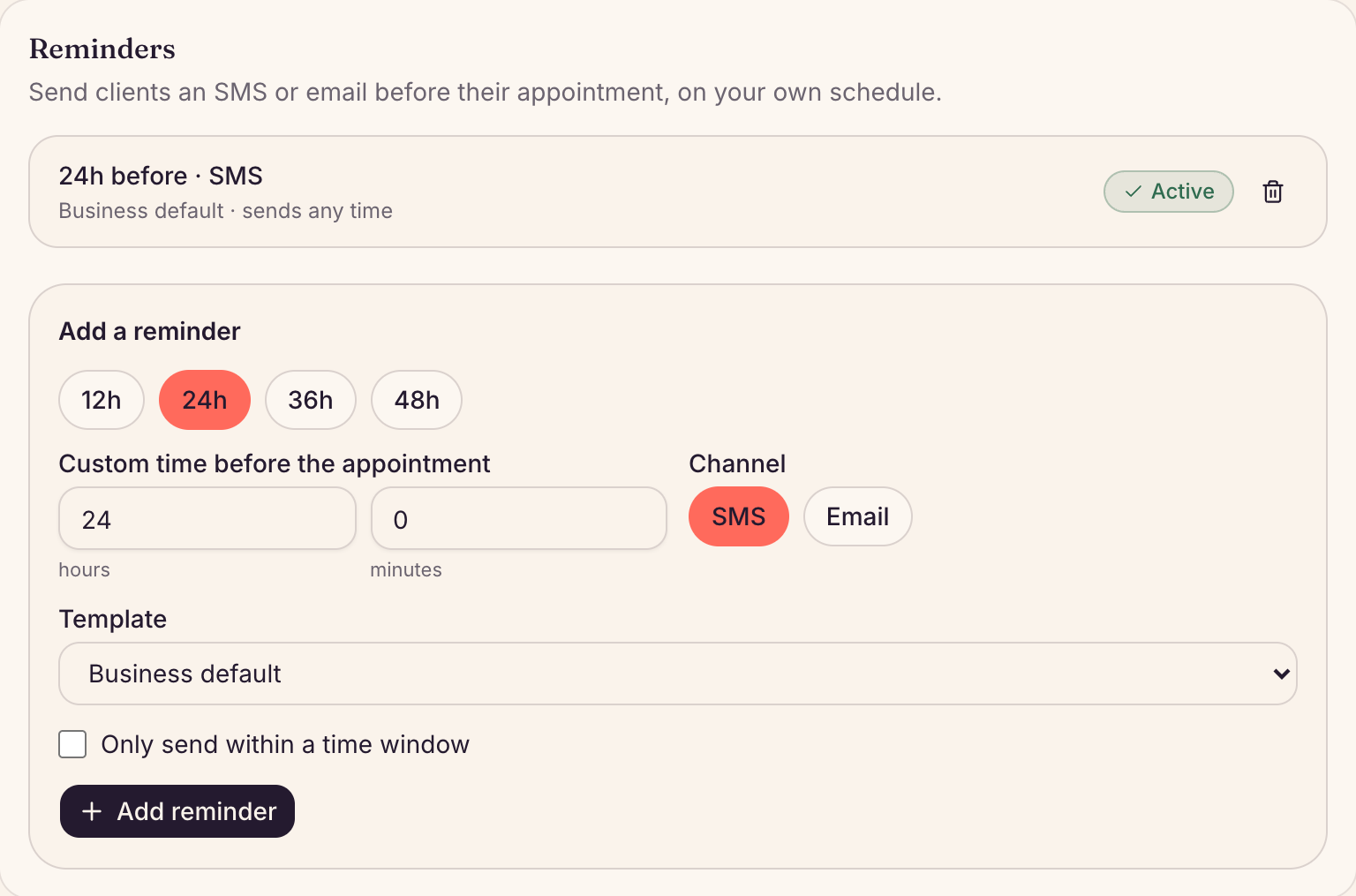
- In Settings, choose Clients & messages and find Reminders. The reminders you have are listed, with when and how each one sends.
- Under Add a reminder, choose 12h, 24h, 36h or 48h, or set your own Custom time before the appointment, from 15 minutes to 28 days.
- Choose the Channel, SMS or Email. Leave Template on Business default, or pick one of your own.
- To keep texts to daytime, tick Only send within a time window and set From and To. A reminder due outside the window is held, and sent when the window next opens, as long as the appointment has not started.
- Choose Add reminder.
Each reminder has a button showing Active or Off: choose it to switch the reminder on or off. The bin next to it removes it. Up to 5 reminders can be active at once.
Choose which messages clients get
- In the same place, find What we tell your clients.
- Each message has an Email button and an SMS button. Choose one to turn that channel on or off for Booking confirmed, Confirmation request, Booking moved or Cancellation.
- The emails Preen sends to you are here too: New online booking (to you), Booking cancelled online (to you) and Booking moved online (to you).
Ask clients for reviews
- Reviews help new clients choose a hair, beauty and wellness business with confidence. About 2 hours after you close a sale for a booking, Preen emails the client and asks for an honest review. It goes between 8am and 8pm your time, by email only, and only to the email you already used for that visit: a booking email. For bookings you imported from another system, Preen can also use the receipt or aftercare email for that visit, as long as the client’s details haven’t changed since the import.
- So a client is not asked if they have no email, or if no email we can confirm went to their address for that visit (for example SMS only, or booking messages switched off, or an imported client whose details changed after the import). A client is also not asked if they have reviewed you before, have been asked about that visit or by you in the last 90 days, or have turned review requests off. Every client who fits is asked the same way, whatever their visit was like. Reviews shows how many recent visits were not asked, and why.
- To stop asking, turn off Review request in What we tell your clients. Reviews you already have stay up. New review (to you) is the email Preen sends you when a client posts one.
- If your business was already on Preen before 2 November 2026, review requests start switched off. To turn them on, open Settings, choose Clients & messages, find What we tell your clients and choose the Email button next to Review request. A tick on the button shows it is on. Only an owner or manager can change it.
- Reviews show on your booking page and in the Preen marketplace with the client’s first name and last initial, their stars, the service and the date, marked Verified visit.
- Open Reviews from the menu to read them. Owners and managers can reply in public, or choose Report this review if it is abusive or from the wrong person, and Preen will look at it. Reviews can’t be deleted or hidden.
- Reviews are on the web for now, not in the Preen app.
Email aftercare after checkout
- Aftercare in What we tell your clients is the email with the aftercare you wrote on a service, sent after checkout the first time a client has that service. It is on unless you turn it off, and sends nothing until a service has aftercare. See Add or change a service.
Keep an eye on your monthly texts
- Settings shows the texts used this month and how many are left. Long texts count as more than one text, and the month follows your business’s timezone.
- Preen shows a notice when you have used 75% and 90% of this month’s texts, and when they run out.
- When texts run out, the same message goes by email if the client has an email address. Without one, Messages shows “not sent: plan text limit”.
- If your business pays Preen by card, extra texts keep going past the monthly number at 10c each including GST, added to your next invoice. In Settings, under Extra texts, turn off Keep texting after my allowance or set the Monthly limit for extra texts ($20 unless you change it). Preen warns you at 80% of the limit; once it is used up, texts go by email until the next month.
Change what a message says
- Find Messages & templates and choose Edit on the message.
- Change the Message body, and the Subject for an email. The buttons above the message body add details such as the client’s name.
- Check the Live preview (sample data) and choose Save template.
Good to know
- Open Messages from the menu to see every confirmation, reminder and waitlist alert Preen has queued.
- Bookings you import get no reminders until you turn them on. See Bring your clients, services and upcoming bookings across.
- In the Preen app, Notifications under More is for alerts to you about new bookings and cancellations. Client messages are set on the web.
Still stuck? Email support@preen.au, or see every guide.
Checked against Preen on .